Documentation
Guides for making a graphic and putting it on air.
The studio is at noacg.studio/app and it is free. Each guide names the software it needs. An account is required only to publish a production, or to let a coding agent save into your library; everything else, including export, works without one.
Getting started
NoaCG Studio makes broadcast graphics in the browser: lower thirds, scoreboards, tickers, quiz boards, countdowns. A lower third is the name strap that sits under a speaker. Putting one of these on air, meaning into the picture the audience sees, works two ways. One is a live production you drive from an online dashboard. The other is an exported package that runs offline in whatever system your studio already uses.
- Open the studio. The creation wizard offers three starting points: a template from the catalog, your own artwork, or a description for AI. A blank start is there too, once Advanced mode is switched on in Settings. That is the toggle that shows the code editor, and it is off until you ask for it.
- Set the colors, typefaces, logo and motion beside a live preview. Every change writes real HTML, CSS and JavaScript. You can open it, or never look at it.
- Finish, then either export a package straight away, or collect graphics into a production and run the show.
Have a design ready? Import an SVG walks it from the file to air.
The guides below cover the rest: what each kind of graphic asks you to type, bringing your own design in as an SVG, connecting playout systems, live data, and letting a coding agent do the authoring.
Have Claude Code or Codex? Drive NoaCG from the agent you already use. You describe the graphic in your own terminal instead of in the wizard, and the NoaCG CLI gives the agent the contract to build to, the validator to check itself against, and a way to save the result into your library. One prompt sets it up: Make graphics with Claude Code, Codex or any coding agent.
Graphics
Draw your graphic in Illustrator, Figma or Inkscape and import it as an SVG. Every text layer becomes a field the operator can retype. The layer names tell NoaCG what kind of graphic it is, so a scoreboard gets score buttons and a quiz gets quiz buttons.
Pick a type to see how to lay it out:
- Scoreboard - two teams and two scores.
- Quiz - a question and two to six answers.
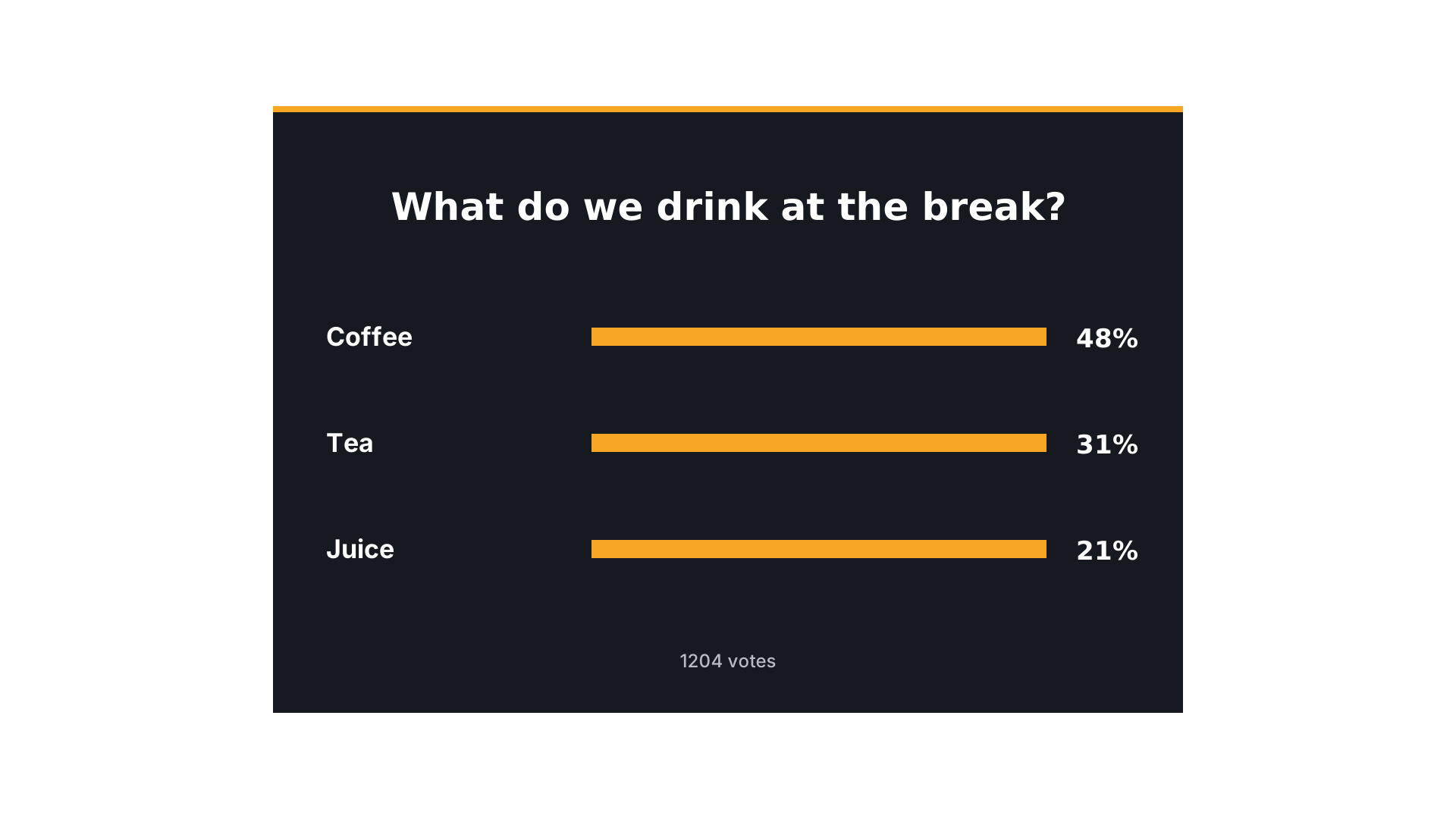
- Live vote - options with bars that grow as the audience votes.
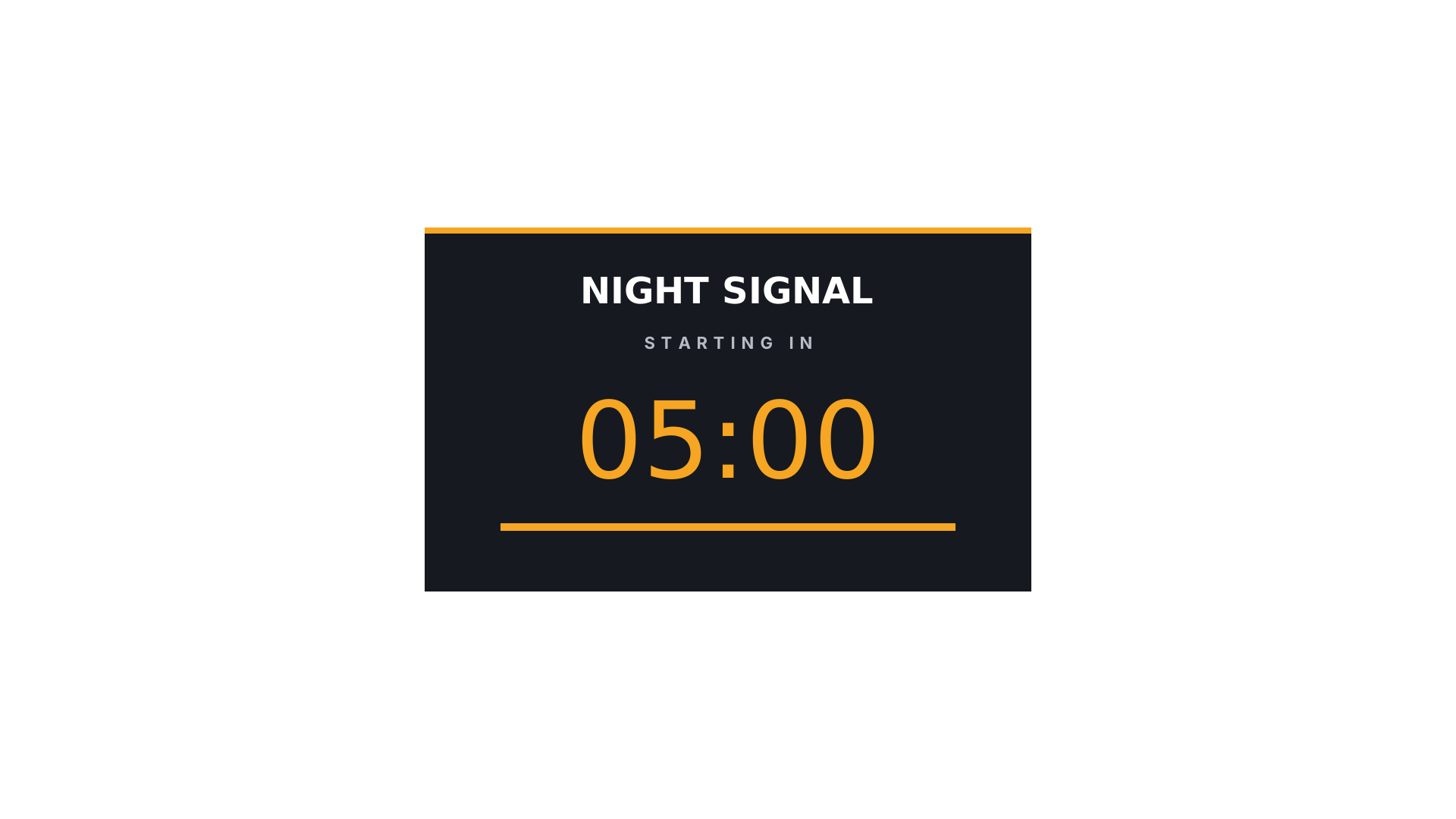
- Countdown - a clock that counts down to zero.
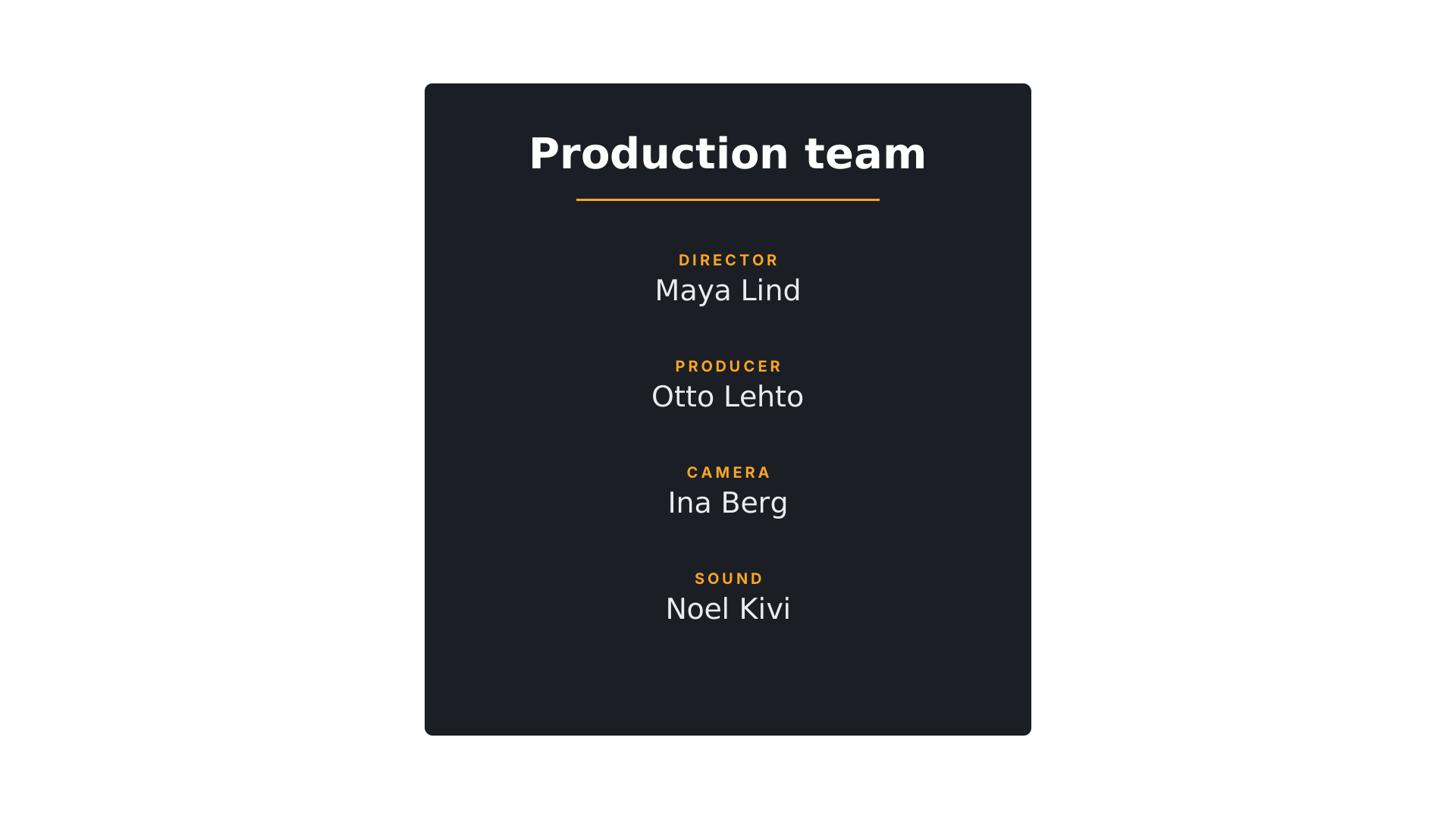
- End credits - roles and names.
- Ticker - a tag and a story line.
Any other graphic, such as a lower third, needs no special names. Its text layers become fields and that is all.
Import an SVG
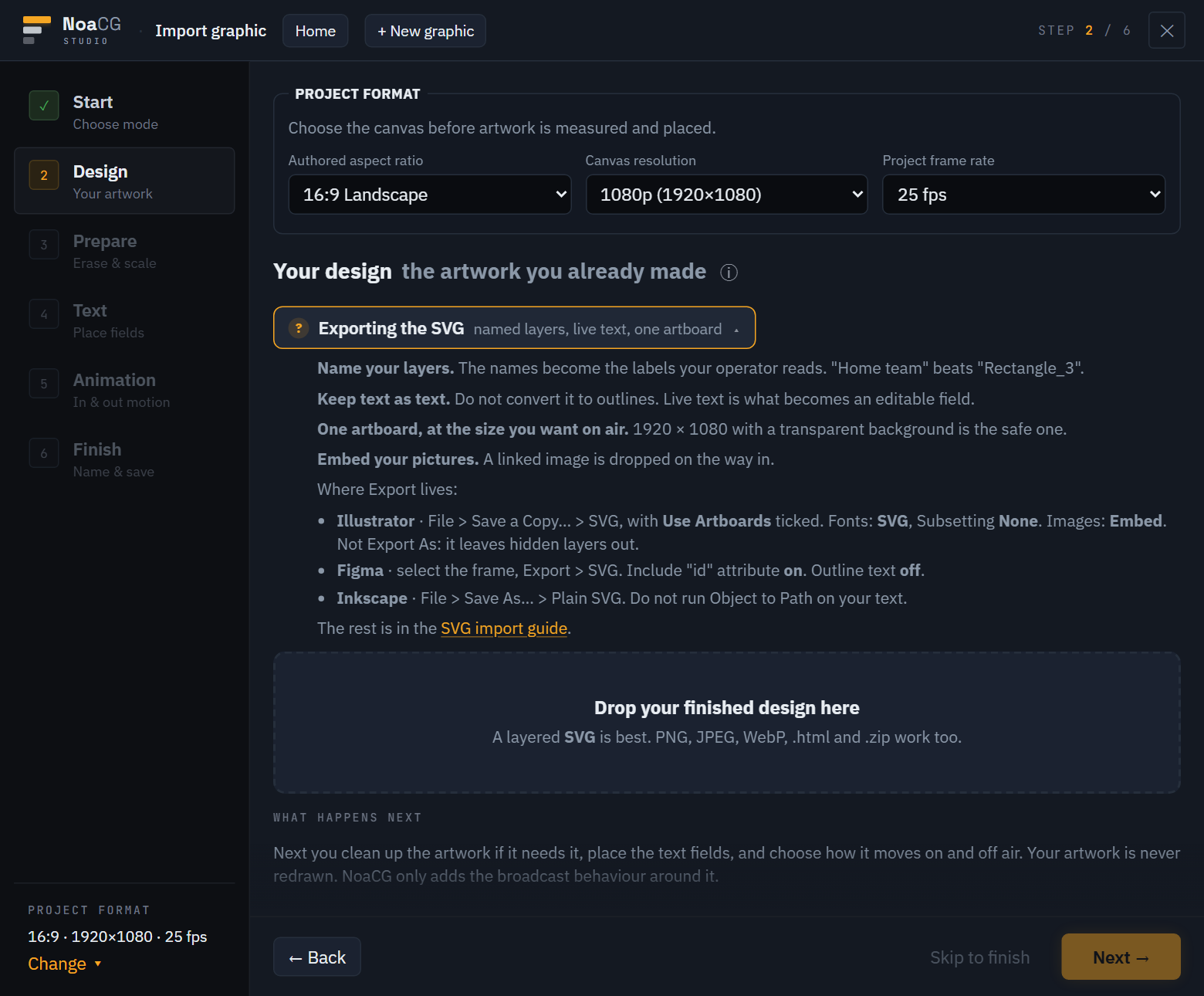
- Open the studio and choose Import graphic. No account is needed until you publish a production.
- Set Project format first. The default is 16:9, 1920×1080, 25 fps. It locks once your file is in, with the message "Remove the current artwork before changing its authored canvas".
- Drop your SVG. NoaCG shows the size, how many text layers it found and which fonts the file uses. If it found fewer text layers than you drew, some text was exported as outlines.
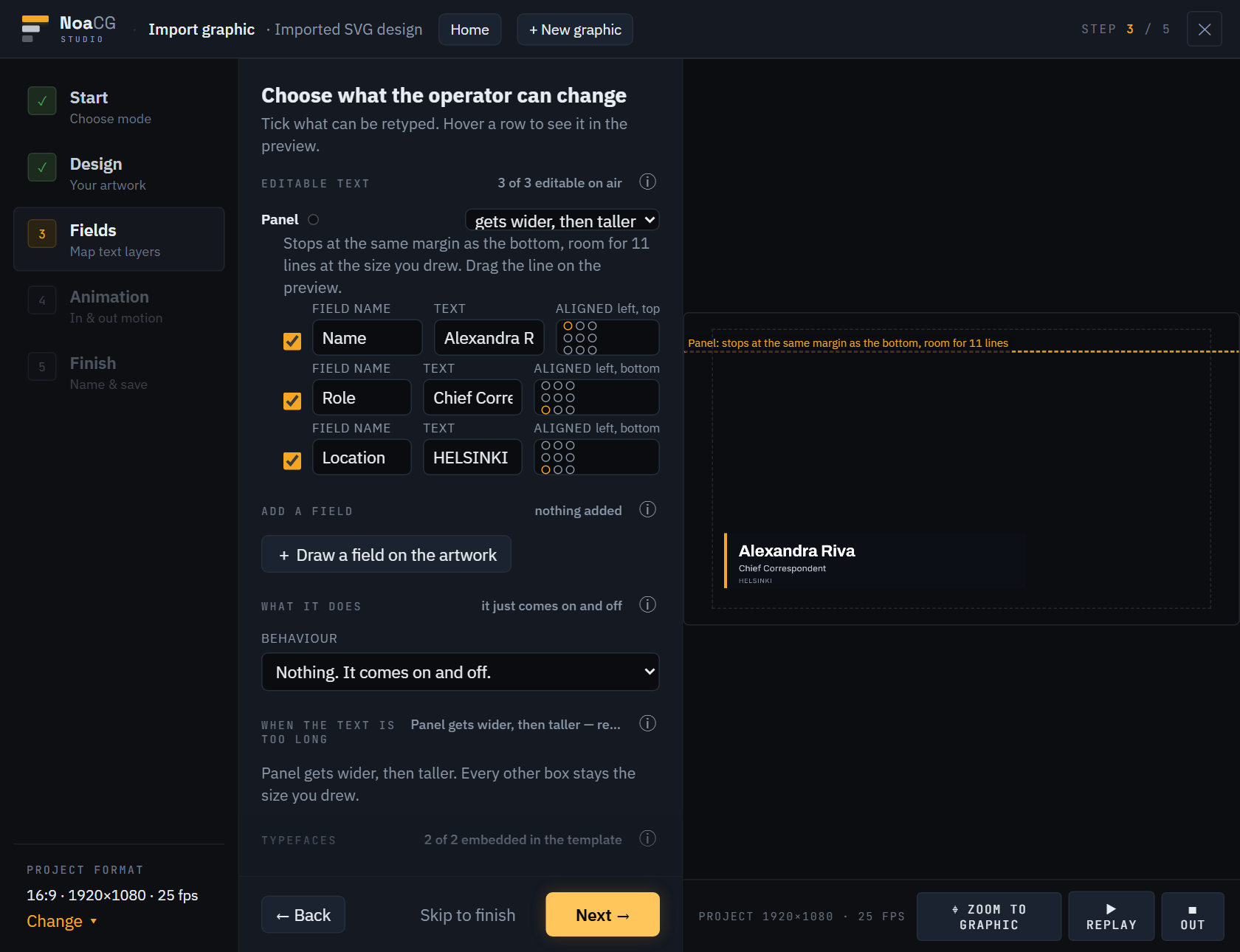
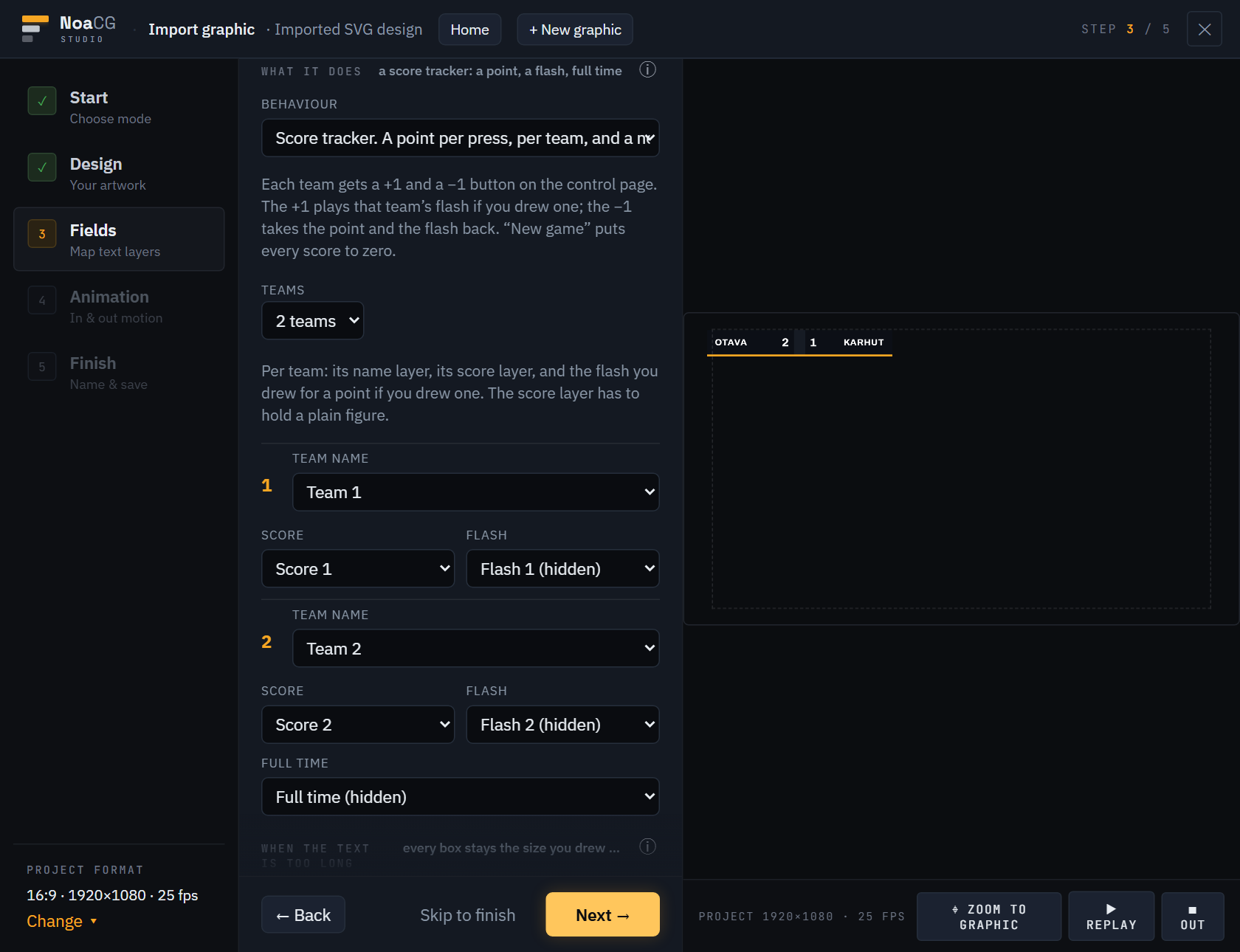
- Check the Fields step. Every ticked layer is a field the operator types into, labelled with your layer name. Rename a label here if you need to. What it does shows the type NoaCG found from your layer names. You can change it and pick the layers yourself.
- Choose how the graphic comes on and goes off in Animation.
- In Finish, name the graphic and choose Add to the production or Export it. Both save it to your library. Skip to finish in the footer of any earlier step brings you straight here, keeping the choices you have not made at their defaults.
On air
Add to the production takes you to the production with your graphic in the rundown. Press Take to put it on air. Type new text, then press Update to send it. Until you do, the panel says "1 change not on air yet". Out takes the graphic off. To get the picture into OBS, vMix or CasparCG, see the playout dashboard.
Prepare the SVG file
- Give it a size. Use a 1920×1080 artboard with a transparent background and draw the graphic where it sits on screen, so a lower third goes at the bottom of that artboard. In Illustrator tick Use Artboards when you save the SVG, or the file is cut down to the drawing. A smaller artboard imports as a floating object that you place in the wizard.
- Keep text as text. Do not convert text to outlines, because outlined text cannot be edited.
- Name your layers. The name is the label the operator sees. For the types below it is also how NoaCG finds each part.
- Embed pictures. Linked pictures are removed, because an exported graphic has to play without a network.
- No animation or scripts. SVG animation, scripts and
<foreignObject>are removed. Add motion in the Animation step.
Export settings
| App | Settings |
|---|---|
| Illustrator | File → Save a Copy… → SVG, with Use Artboards ticked. In SVG Options: Fonts Type SVG, Subsetting None (Use System Fonts) · Image Location Embed · Preserve Illustrator Editing Capabilities off · under More Options, CSS Properties Style Elements. Do not use Export → Export As for a graphic with hidden layers: Illustrator 2026 leaves every hidden layer out of that file. |
| Figma | Select the frame, Export → SVG. Include "id" attribute on, Outline text off. |
| Inkscape | Save As… → Plain SVG. Do not run Object to Path on text. Click to place text instead of dragging a text box: a dragged box exports as <flowRoot>, which browsers do not show. |
Fonts
NoaCG lists every font the file uses. For each one it uses a bundled font, offers the same family from Google Fonts, or takes a font file you upload. The font is embedded in the graphic, so it plays offline. If nothing matches, you get a warning and the graphic uses a fallback font.
Layer names
Every graphic type uses the same three layers and the same way of naming what is in them. Learn it once and a quiz, a scoreboard and a vote are the same job.
The three layers
Textholds what the operator types. One text object per field, named for what it is:Question,Team 1.Momentsholds what NoaCG shows, hides or moves. A hidden group for each moment, such asSelected AorFull time, and a bar drawn at its full length, such asBar 1.Boardholds what stays as drawn: the panel, the row plates, the letters and the labels.
A name is a word and a row
- The word says what the layer is. The row is one letter or one number, last, after
a space:
Answer A,Score 1,Winner 2. A quiz counts in letters, because the letters are drawn on the board. Everything else counts in numbers.Bar1has no row and is not found. - Layers with the same row belong together.
Answer B,Selected B,Correct BandWrong Bare all answer B. - A moment is a group that you hide in your design app. A hidden shape on its own is not found, so put it in a group, even a group of one. Text inside a hidden group is drawing, not a field.
- A text that stays as drawn starts with
static:, as instatic:Letter A. A text that is a single letter, like the A on a quiz row, starts unticked whatever it is called. - The spelling does not matter, the words do. Capitals, spaces, underscores and
dashes are all the same to NoaCG, so
Answer A,answer_aandANSWER-Aare one name, and the synonyms and Finnish words in the table below work too. The examples use one spelling so that you can copy it. - In Illustrator, name each text object (double-click its row), or put it alone in
a layer with the name: a text inside a layer called
Questionis Question. Four unnamed texts inside a layer calledAnswersare all Answers, and no type is found. Save the file with Save a Copy as above, because Export As leaves hidden layers out. - When the names fit a type, the wizard picks that type in What it does and fills in every layer. When a name does not fit, pick that layer from the list yourself.
- ▾Text
- TAnswer D
- TAnswer C
- TAnswer B
- TAnswer A
- TQuestion
- ▾Moments
- ▸Wrong Dhidden
- ▸Correct Dhidden
- ▸Selected Dhidden
- the same for C and B
- ▸Wrong Ahidden
- ▸Correct Ahidden
- ▸Selected Ahidden
- ▸Locked inhidden
- ▾Board
- Tstatic:Letter D
- static:Letter C, B, A
- ▭Row D
- Row C, B, A
- ▭Edge
- ▭Panel
One full tree
The quiz example, exactly as Illustrator's Layers panel shows it. Amber names are
the ones NoaCG reads. Everything in Board has a name so that you can
tell the plates apart in the wizard, but none of those names is special.
Every type page below shows its own tree in the same shape. Open one of the example files in Illustrator to see the tree in the Layers panel, hidden groups included, and copy it. Illustrator opens the three as groups inside one layer; three layers of your own with the same names work the same way.
quiz.svg, scoreboard.svg, live-vote.svg, countdown.svg, end-credits.svg and ticker.svg.

Every name NoaCG reads
The layers each type looks for. Name it is the spelling the examples
use; the names under Also works are read the same way. Change the
row to match your own rows: Answer A is also Answer B,
and Team 1 is also Team 2.
| Layer | Name it | Also works | What it does |
|---|---|---|---|
| Score tracker | |||
| Team (one per row) | Team 1 | Side 1, Player 1, Joukkue 1, Lag 1 | a field the operator types |
| Score (one per row) | Score 1 | Points 1, Goals 1, Team 1 Score, Pisteet 1, Poäng 1 | a field - draw a plain number in it |
| Flash (one per row) | Flash 1 | Goal 1, Scored 1, Maali 1, Mål 1 | shown for the moment that team's point lands |
| Full time | Full time | Final, Game over, Loppu, Full tid | once the game is called (one, whole board) |
| Two to eight teams. | |||
| Quiz | |||
| Question | Question | Kysymys, Fråga | always - it is a field the operator types |
| Answer (one per row) | Answer A | Vastaus A, Svar A | always - a field |
| Selected (one per row) | Selected A | Picked A, Chosen A, Valittu A, Vald A | while that answer is the pick |
| Correct (one per row) | Correct A | Right A, Oikein A, Rätt A | on the reveal, if it is the correct answer |
| Wrong (one per row) | Wrong A | Incorrect A, Väärin A, Fel A | on the reveal, if it is not |
| Locked in | Locked in | Locked, Lukittu, Låst | once the answer is locked (one, whole board) |
| Two to six answers. | |||
| Live vote | |||
| Question | Question | Kysymys, Fråga | written from the round |
| Option (one per row) | Option 1 | Choice 1, Answer 1, Vaihtoehto 1, Alternativ 1 | written from the round |
| Bar (one per row) | Bar 1 | Palkki 1, Stapel 1 | draw it at its FULL length - that length is 100% |
| Percent (one per row) | Percent 1 | Share 1, Osuus 1, Procent 1 | appears with the result |
| Winner (one per row) | Winner 1 | Voittaja 1, Vinnare 1 | only on the row that won, and never on a tie |
| Total votes | Total votes | Ääntä, Röster | written from the round |
| Vote badge | Vote badge | Äänestä, Rösta | while voting is open |
| Two to eight options. | |||
| Countdown | |||
| Clock | anything | the readout - set its row to Countdown | |
| Timer bar | Timer bar | Drain, Countdown bar, Aikapalkki, Tidsbalk | draw it at its FULL length - that length is the whole count |
| Warning | Warning | Last stretch, Hurry, Varoitus, Varning | the look the final seconds wear |
| Paused | Paused | Hold, Tauko, Paus | while the operator is holding the clock |
| Time up | Time up | Expired, Finished, Aika loppu, Tiden ute | once it reaches zero |
| Standings | |||
| Competitor (one per row) | Name 1 | Row 1 name, Competitor 1, Player 1, Nimi 1 | a field the operator types - it travels with its row |
| Points (one per row) | Points 1 | Row 1 points, Pts 1, Score 1, Pisteet 1 | a field - draw a plain number in it; the rows sort by it |
| Position (one per row) | Position 1 | Row 1 position, Rank 1, Place 1, Sija 1 | the place number drawn in that slot - it stays put and is renumbered on a tie (1, 2, 2, 4) |
| Row plate (one per row) | Row 1 | Plate 1, Card 1, Rivi 1 | a drawing behind the row that travels with it (optional) |
| Two to ten rows, each drawn in its starting place with first place at the top. Tick Lowest first for times and golf scores. | |||
| Meter | |||
| Bar | Progress bar | Meter | draw it at its FULL length - that length is the target |
| Percent | Percent | Share, Osuus | written as the current figure's share of the target |
| Survey board | |||
| Question | Question | Kysymys, Fråga | a field the operator types |
| Answer (one per row) | Answer 1 | Vastaus 1, Svar 1 | draw it as it looks revealed - written from the Answers box, hidden until its reveal |
| Points (one per row) | Points 1 | Pts 1, Pisteet 1 | a plain figure - written from the Answers box, shown with its answer |
| Revealed (one per row) | Revealed 1 | Flip 1, Open 1 | shown once that answer is revealed |
| Strike 1 | Strike 1 | X 1 | the first X, lit from the first strike on |
| Strike 2 | Strike 2 | the second X | |
| Strike 3 | Strike 3 | the third X - and the Strike button greys | |
| Total | Total | Sum, Yhteensä | written by NoaCG: the points of the revealed answers, added up |
| Two to eight answers. | |||
| Stepped list | |||
| Entry (one per row) | Item 10 | Entry 10, Number 10, Kohta 10 | draw it as it looks revealed - written from the Entries box, hidden until its number comes up |
| Mark (one per row) | Mark 10 | Current 10, Highlight 10 | shown on the entry that just arrived, until the next one does |
| Two to twelve entries; the option decides whether they arrive from the last number down or from 1 up. | |||
| Lineup | |||
| Guest (one per row) | Guest 1 | Act 1, Speaker 1, Vieras 1 | a field the operator types |
| On now (one per row) | Now 1 | Current 1, Nyt 1 | shown on the guest who is on |
| Been on (one per row) | Done 1 | Been 1, Past 1 | shown on every guest who has already been on |
| Two to eight guests, in the order they come on. | |||
| Puzzle board | |||
| Category | Category | a field the operator types | |
| Letter (one per row) | Letter 1 | Tile 1, Kirjain 1 | one letter, drawn as it looks revealed - written from the phrase, shown once its letter is called |
| Used (one per row) | Used 1 | White 1 | shown on every tile the phrase reaches - the white face behind a letter still hidden |
| Solved | Solved | Ratkaistu | once the puzzle is solved (one, whole board) |
| Four to forty tiles, numbered left to right and then down; the phrase is laid over them in that order, so put spaces where the tiles should stay blank. | |||
| Reveal | |||
| The reveal | Price | Secret, Reveal, Hinta | draw it as it looks revealed - written from The reveal box, hidden until the press |
| Cover | Cover | Envelope, Sealed, Kansi | shown until the reveal - the sealed plate over the text |
| Bingo caller | |||
| Numeral (one per row) | Number 7 | Ball 7, Numero 7 | the numeral on a tile, left as you drew it - naming it keeps it out of the operator’s fields |
| Called (one per row) | Called 7 | Marked 7, Huudettu 7 | shown on a number once it has been called |
| Last called (one per row) | Last 7 | Latest 7, Ring 7 | shown on the number called most recently, until the next call |
| Last call readout | Last call | Latest, Now calling | the number called most recently, written large - hidden until the first call |
| Count | Count | Calls, So far | how many numbers have been called, written by the board |
| Five to ninety numbers, one Called layer each. Name the numeral on each tile Number 1, Number 2 and so on, and it stays your drawing instead of arriving as a field. | |||
Names for any graphic
static:at the start of a text layer's name, as instatic:Heading, keeps the text as drawn. It is not an operator field.f:at the start of a picture's name, as inf:Logo, makes it a field the operator can swap. Pictures without it start unticked.- Text drawn as a plain number, such as
84, becomes a number field with + and − buttons. - Text drawn as a time, such as
05:00, can become a countdown. - Give every layer its own name. If two layers are both called
Bar, the second one becomesBar 2. - Panels, lines, gradients and masks stay exactly as drawn.
When the operator types more than fits, NoaCG first uses the room in the shape behind the text, then wraps it onto a new line, then makes it smaller. Nothing is cut off.
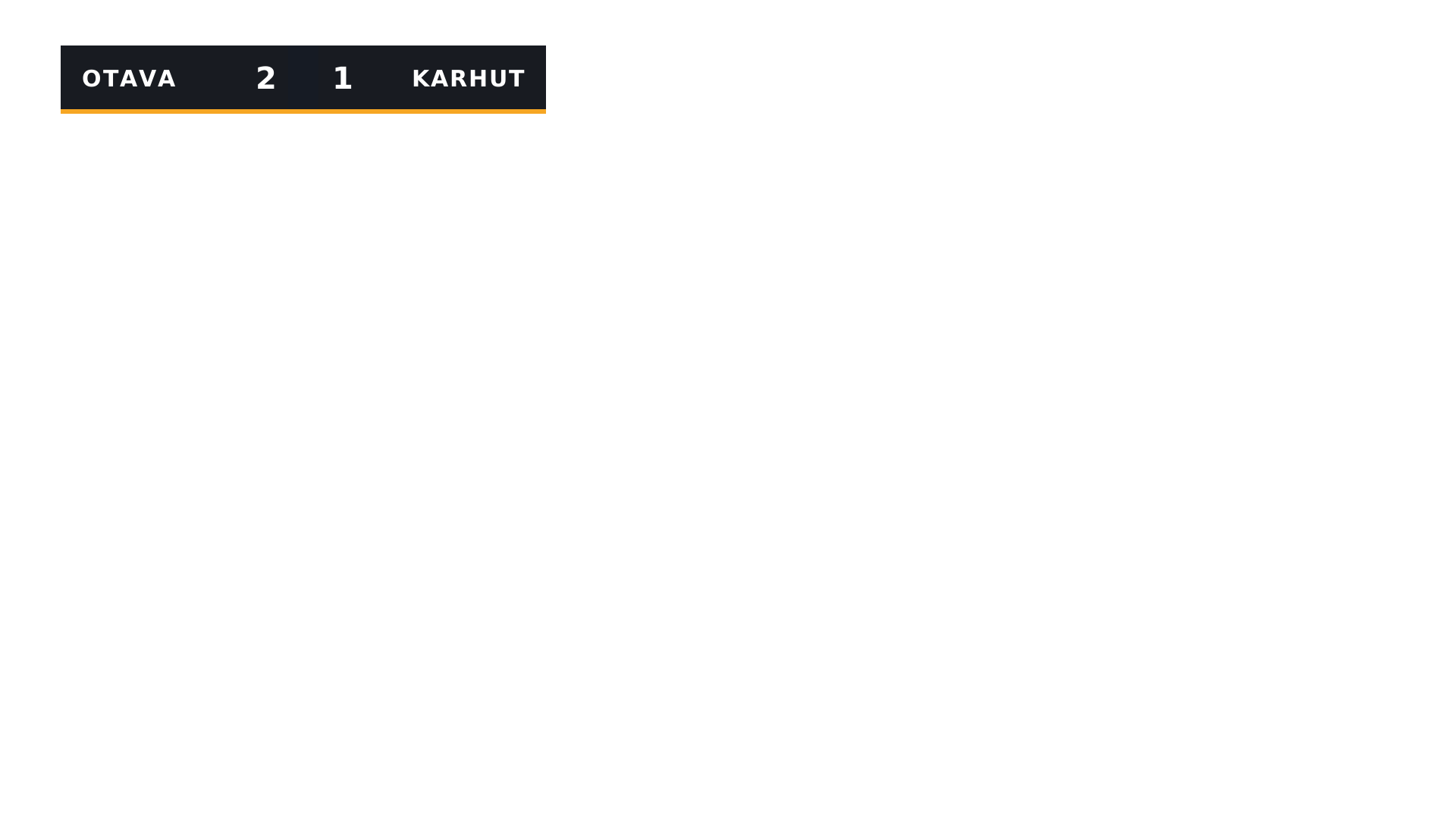
Scoreboard
Two team names and two scores. The operator adds a point with one press.

- ▾Text
- TTeam 2
- TScore 2
- TScore 1
- TTeam 1
- ▾Moments
- ▸Flash 2hidden
- ▸Flash 1hidden
- ▸Full timehidden
- ▾Board
- ▭Edge
- ▭Divider
- ▭Panel
Layer names
Team 1andTeam 2: text. Required.Score 1andScore 2: text, drawn as a plain number such as2. Required.Flash 1andFlash 2: hidden group. Shows for a moment when that team scores. Optional.Full time: hidden group. Shows at the end of the game. Optional.
Up to eight teams: Team 3, Score 3 and so on. The
example draws the word GOAL inside each flash, but the layer is called Flash
because a point is not always a goal.
Buttons
- +1 and −1 for each team. +1 also shows
that team's
Flashlayer. - Clear flash hides the
Flashlayer again. - Full time shows the
Full timelayer. - New game sets every score to 0.
The operator can also type any score straight into its field.
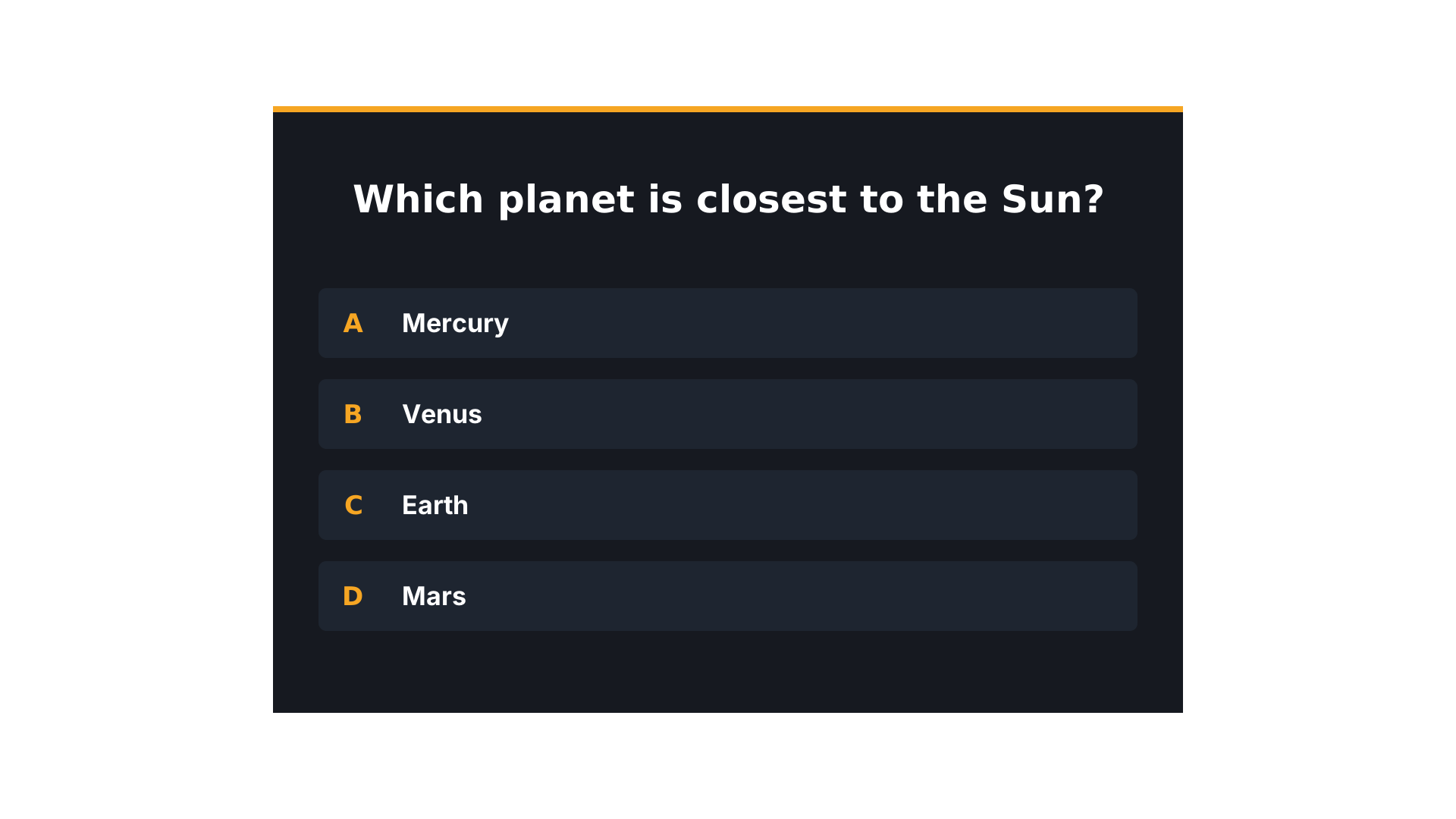
Quiz
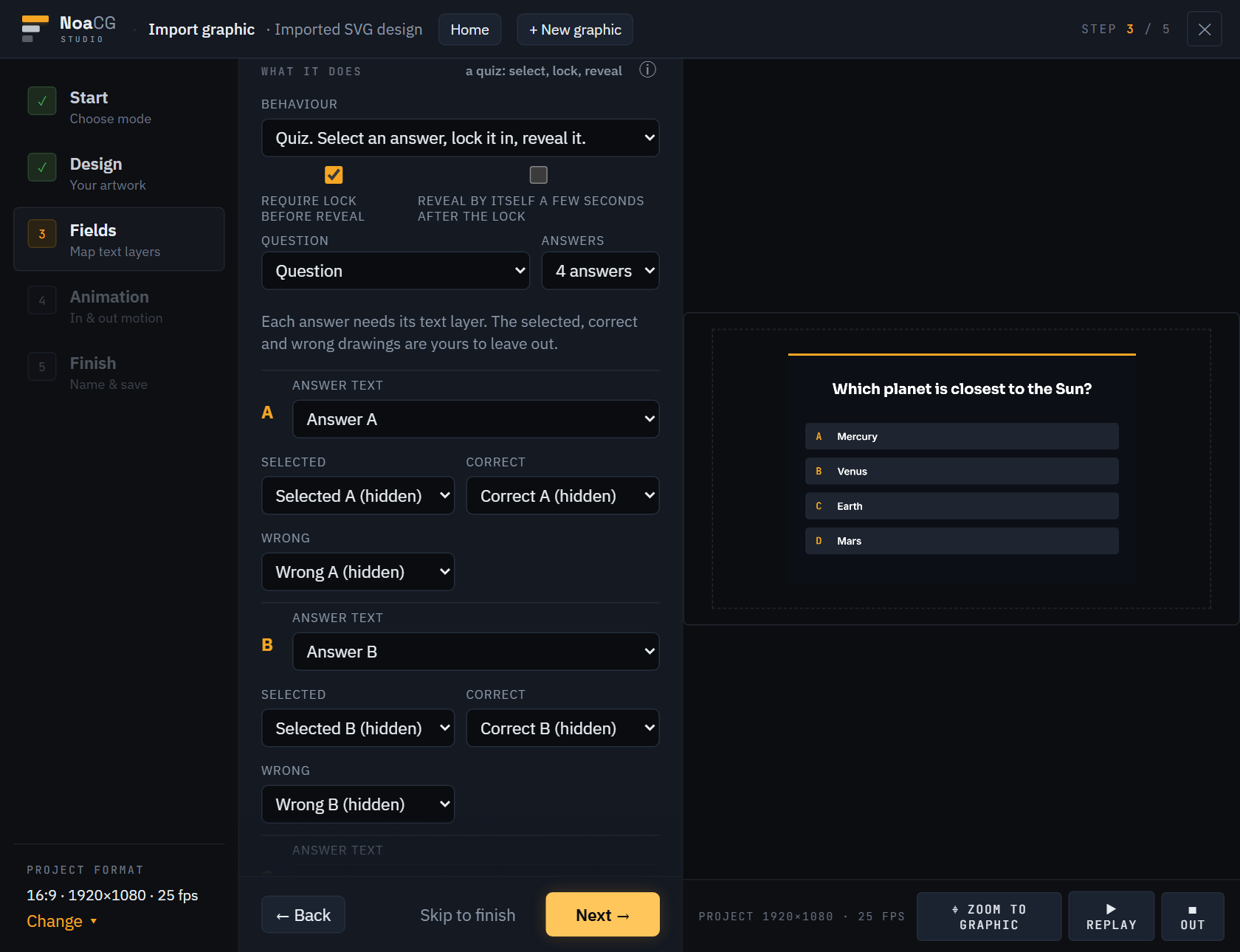
A question and two to six answers. The operator selects an answer, locks it in and reveals the correct one.
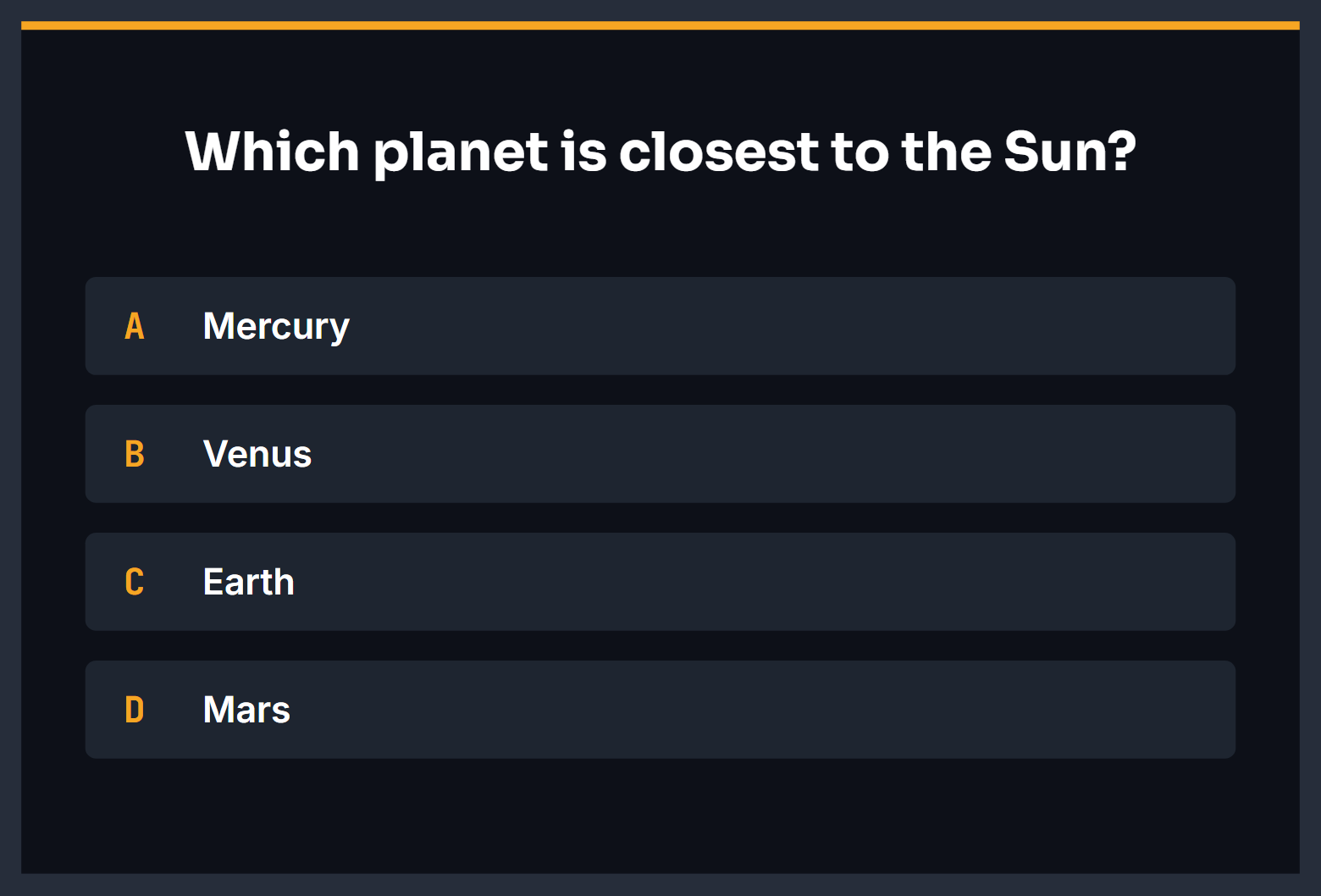
- ▾Text
- TAnswer D
- Answer C, B, A
- TQuestion
- ▾Moments
- ▸Wrong Dhidden
- ▸Correct Dhidden
- ▸Selected Dhidden
- the same for C, B and A
- ▸Locked inhidden
- ▾Board
- Tstatic:Letter D
- static:Letter C, B, A
- ▭Row D
- Row C, B, A
- ▭Edge
- ▭Panel
Layer names
Question: text. Required.Answer A,Answer Band on toAnswer F: text. At least two. Required.Selected A: hidden group. Shows on the answer the operator picks. Optional.Correct A: hidden group. Shows on the correct answer at the reveal. Optional.Wrong A: hidden group. Shows on every other answer at the reveal. Optional.Locked in: hidden group. Shows once the answer is locked in. Optional.
Draw the same three for every answer: Selected B,
Correct B and so on. A moment you do not draw gets NoaCG's own
highlight. The letters on the rows are static:Letter A and so on,
so they stay as drawn.
Buttons
- Set Correct answer before the show. It changes nothing on screen.
- Select answer highlights the letter in Selected answer. Press it again with another letter to change the pick.
- Lock it in makes the pick final.
- Reveal correct shows the right answer. It sends the letter in Correct answer with it, so a key you fix during the show is the one that lights up, even if you did not press Update.
Reveal choice stays greyed out on the road above. It is for keeping the pick secret: choose the letter in Selected answer, press Update, then Lock it in without pressing Select answer. The board shows it is locked but not which answer. Reveal choice then shows the pick, and Reveal correct works as before.
Live vote
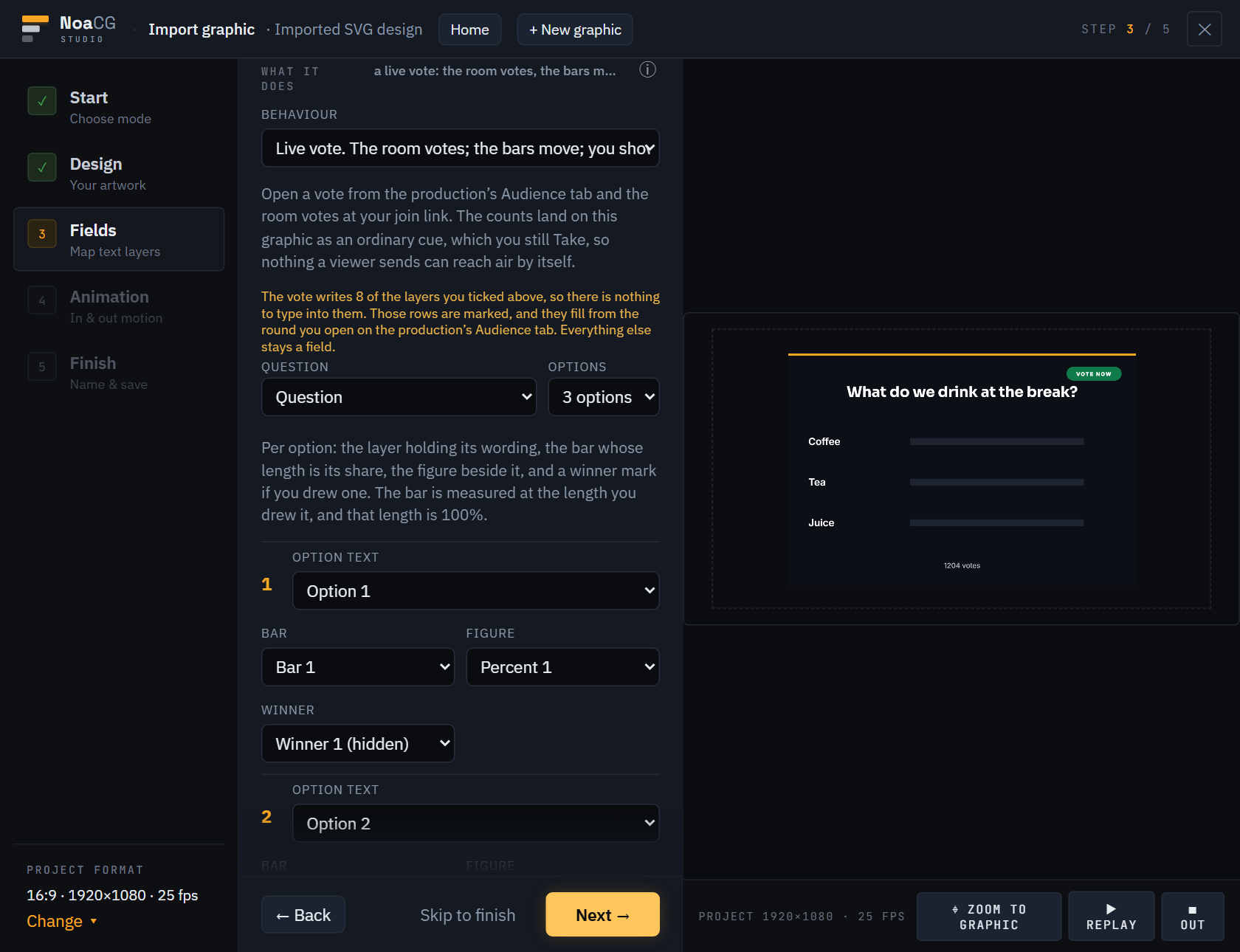
The audience votes on their phones at your join link, and the bars grow with the count.
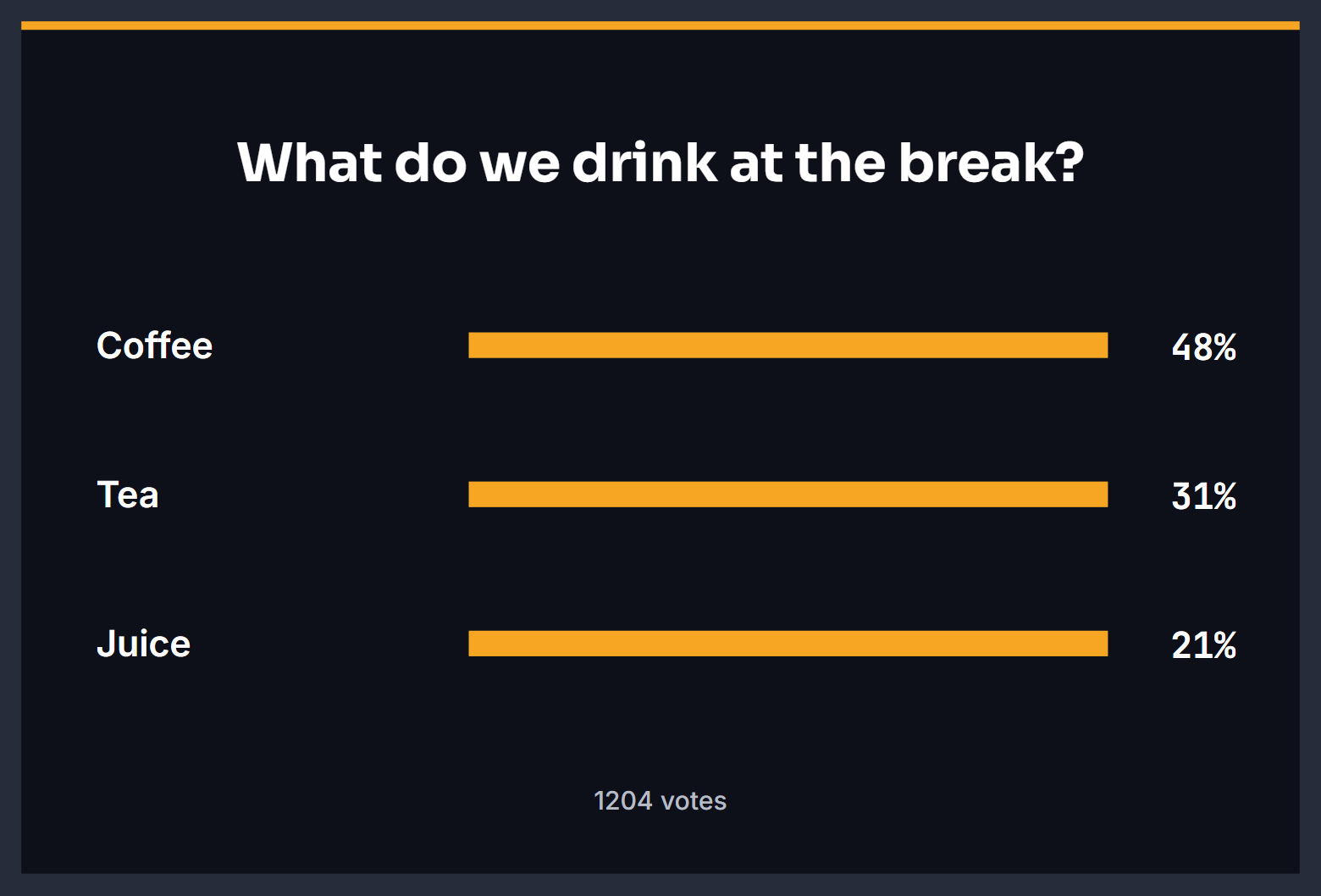
- ▾Text
- TTotal votes
- TPercent 3
- Percent 2, Percent 1
- TOption 3
- Option 2, Option 1
- TQuestion
- ▾Moments
- ▸Vote badgehidden
- ▸Winner 3hidden
- Winner 2, Winner 1
- ▭Bar 3
- Bar 2, Bar 1
- ▾Board
- ▭Track 3
- Track 2, Track 1
- ▭Edge
- ▭Panel
Layer names
Option 1,Option 2and on toOption 8: text. At least two. Required. The vote writes each option's wording here.Bar 1,Bar 2and so on: a rectangle drawn at full length. Full length is 100%. Required.Question: text. Optional.Percent 1and so on: text. Shows that option's share. Optional.Winner 1and so on: hidden group. Shows on the winning row. Optional.Total votes: text. Optional.Vote badge: hidden group. Shows while voting is open. Optional.
The Bar layers are what make the wizard pick Live vote. A bar grows
from its left edge. Draw it as a plain rectangle with square ends, because other
shapes are stretched. Draw the empty track behind it as its own layer in
Board, called Track 1 and so on, never Bar.
Buttons
- Close voting stops the vote.
- Show result shows the final figures.
- Call the winner shows the
Winnerlayer on the row that won.
You open the vote itself on the production's Audience tab. The counts reach the graphic as a cue that you still take to air.
Countdown
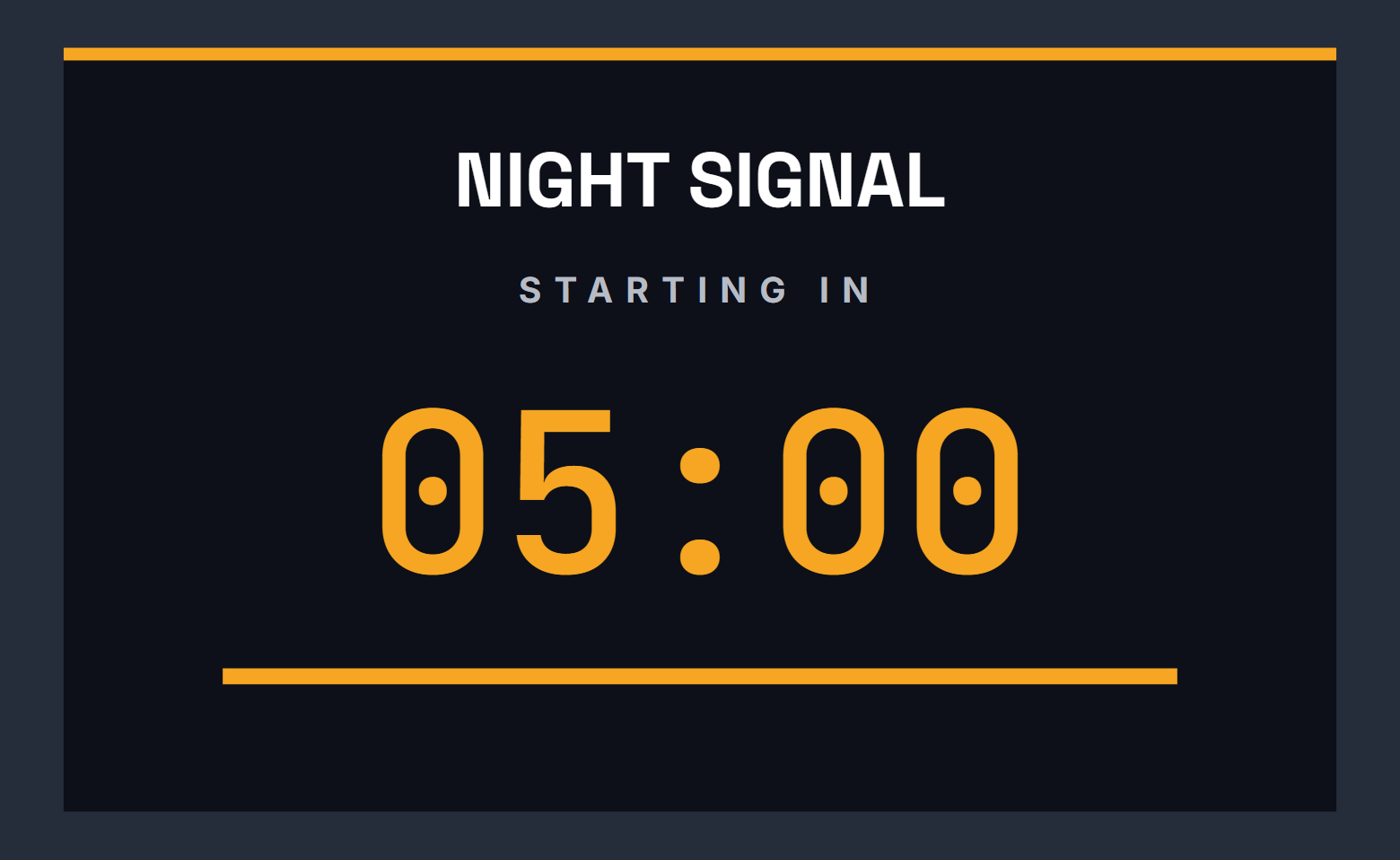
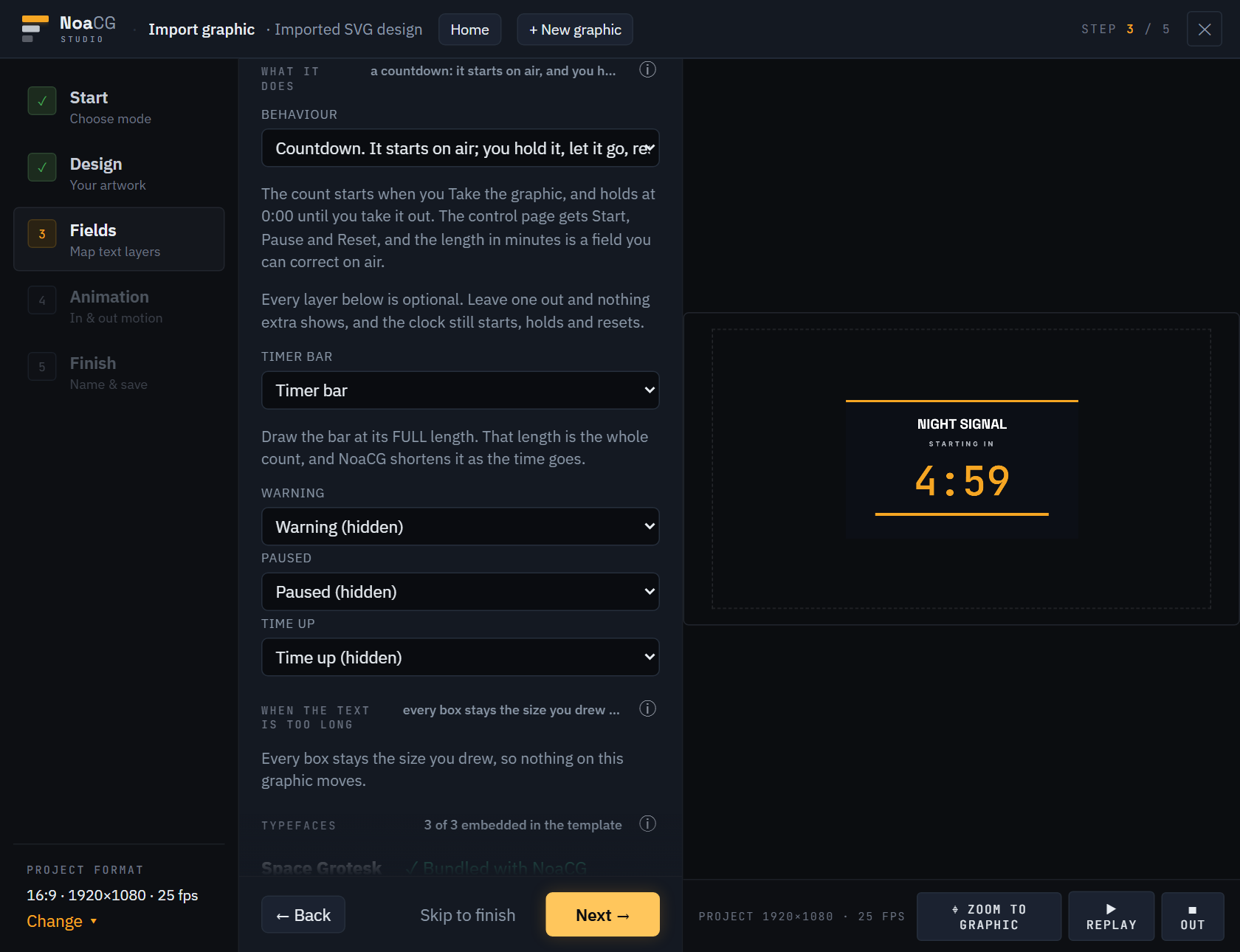
A clock that counts down to zero. The operator sets the length in minutes.
- ▾Text
- TClock05:00
- TShow title
- ▾Moments
- ▸Time uphidden
- ▸Pausedhidden
- ▸Warninghidden
- ▭Timer bar
- ▾Board
- Tstatic:Status
- ▭Track
- ▭Edge
- ▭Panel
Layer names
- One text layer drawn as a time, such as
05:00. Any name; the example calls itClock. Required. Keep it the only text in the file shaped like a time. Timer bar: a rectangle drawn at its full length. It shrinks as the time runs out. Optional.Warning: hidden group. Shows in the last 10 seconds. Optional.Paused: hidden group. Shows while the clock is paused. Optional.Time up: hidden group. Shows at zero. Optional.
The wizard picks Countdown when the file has the time layer and at least one of the four named layers. With only the time layer, choose Countdown in What it does yourself.
The length
- The operator types the length in minutes.
3is three minutes and0.5is thirty seconds. - Do not type the time you want on screen.
2:30is two minutes, not two and a half. - An empty field, or 0, counts five minutes.
Buttons
- Take starts the count from the full length.
- Pause holds the count and Start carries on from there.
- Reset goes back to the full length and waits for Start.
- Warn at (seconds) is a field that sets when
Warningshows.
End credits
Roles and names. Each name is a field the operator can retype.
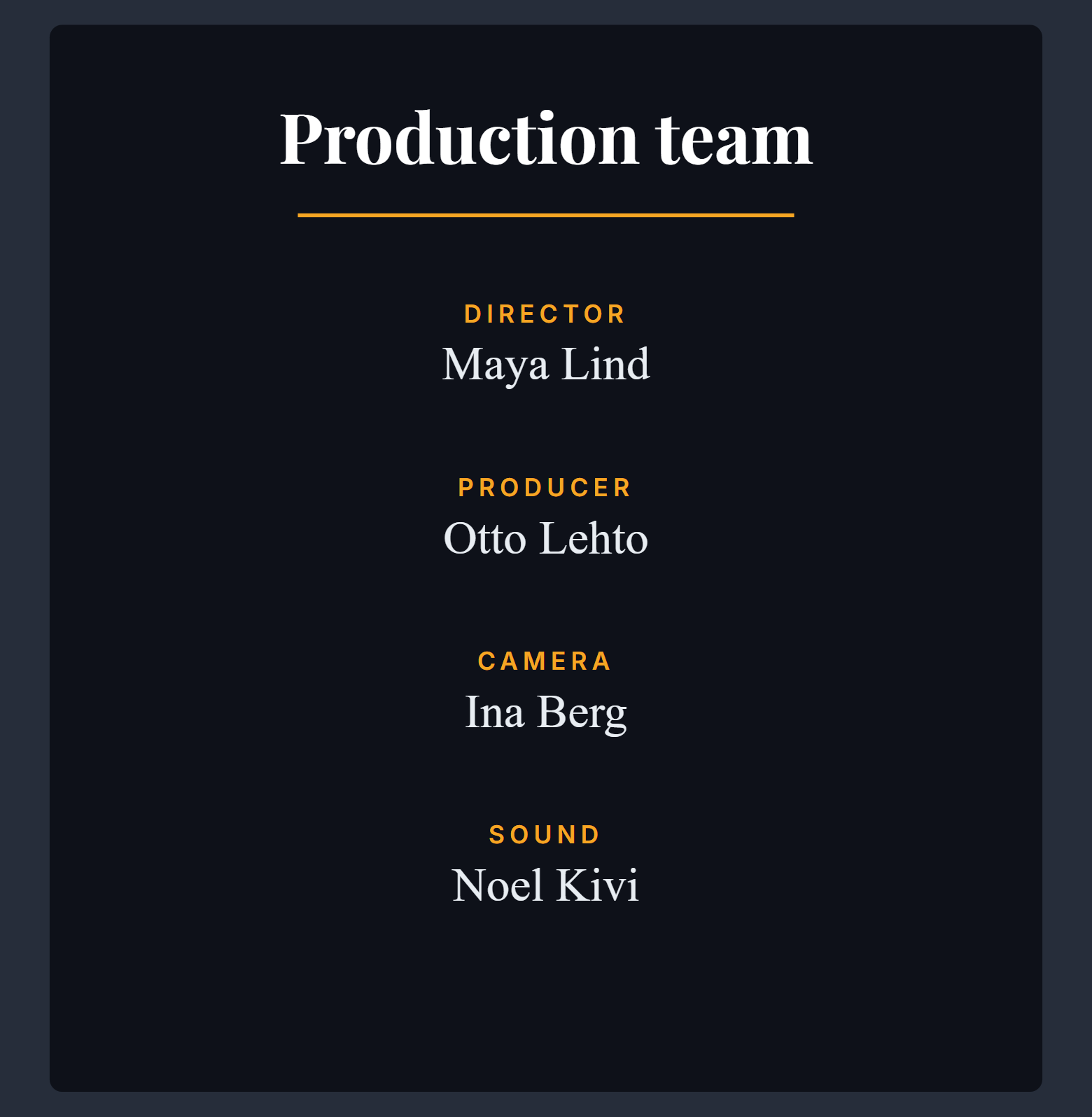
- ▾Text
- TSound name
- Camera name, Producer name
- TDirector name
- THeading
- ▾Board
- Tstatic:Sound
- static:Camera, static:Producer
- Tstatic:Director
- ▭Rule
- ▭Panel
Layer names
- One text layer per name, named after its role:
Director name. Each one is a field. - The role labels start with
static:, as instatic:Director, so they stay as drawn. They live inBoardwith the panel. Heading: text. Optional.
None of these names is special, and there is no Moments layer
because nothing shows or hides. The names are there so the operator knows which
field is which.
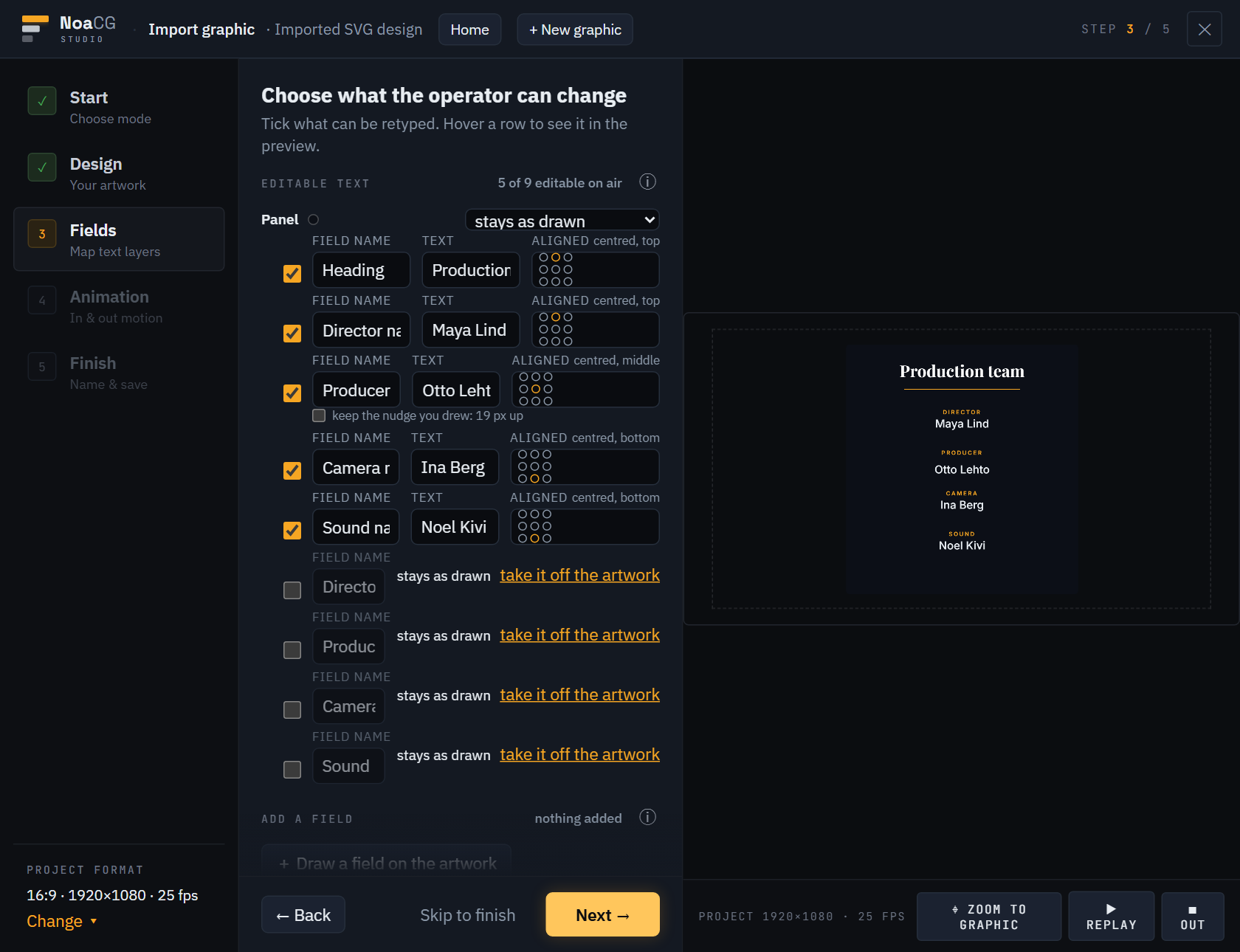
static: role
labels are left out.
A scrolling roll
An imported credits graphic has a fixed number of lines and does not scroll. For a scrolling roll of any length, start from a credits design in the catalog instead. It has one text box for the whole roll, written like this:
Director: Alex Rivera

Camera Operators:
Jonas Berg
Lena Fors- A colon ends a role. Everything else is a name.
- Put a role and its name on one line, or put the role on its own line with the names under it.
- A blank line starts a new section.
# PRODUCTIONis a department heading. - A tab works in place of the colon, so a paste from a spreadsheet works.
Ticker
A tag and a story line along the bottom of the screen.

- ▾Text
- TStory
- TKicker
- ▾Board
- ▭Tag
- ▭Strip
Layer names
Kicker: text. The tag, such asSPORT.Story: text. The headline.
Neither name is special. Both are fields, and there is no Moments
layer because nothing shows or hides.
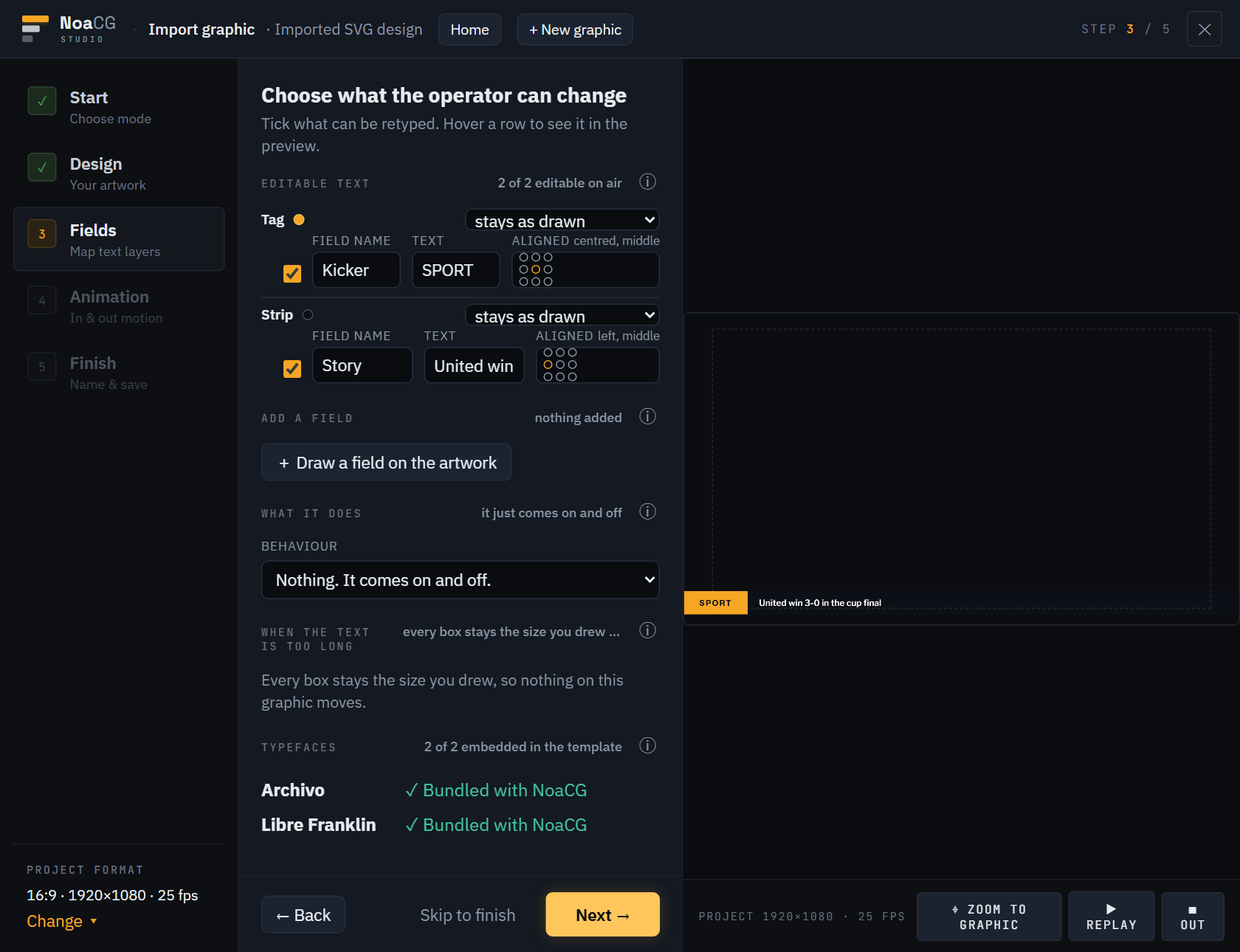
A crawl
An imported ticker shows one story and does not move. For a crawl or a rundown of several stories, start from a ticker design in the catalog instead. It has one text box for the whole rundown:
SPORT: United win 3-0
SPORT:
City held at home
Rovers sign a goalkeeper

Storm warning issued- A colon ends a kicker. Everything else is the story.
- A kicker on its own line applies to every line under it, until a blank line.
- The colon needs a space after it, so
2:1and20:45stay part of the story.
Pictures, logos and Lottie animations
An SVG is the best thing to bring in, because its text stays text. Everything else still works, and this is what happens to it: where you put the file, what NoaCG does to it, what comes out in an export, and what a font nobody has does to a graphic that looked right in the studio.
| File | What it is good for |
|---|---|
| PNG, WebP | A finished design, or a logo. Both carry transparency, which is what lets video show through. |
| JPEG, AVIF, GIF | Photographs and stills. No transparency in a JPEG, so it covers whatever is behind it. |
Lottie (.json) | A vector animation out of After Effects. Stays sharp at any size and weighs almost nothing. |
A font file (.woff2, .woff, .ttf, .otf) | A licensed face your design needs. Taken by the SVG import when it lists the families it found. |
Video (.webm, .mp4) | A short sting inside a graphic. Capped at 3 MB, so it is not the way to play a clip. |
Three ways in
As the graphic itself. The studio → New graphic → Import graphic takes a PNG, a JPEG or a WebP as readily as an SVG. You clean the artwork up, place the text fields yourself, and pick how it moves. Nothing is redrawn. The difference from an SVG is that a picture has no layers to read, so the fields are ones you place rather than ones the file already named.
As a logo on a catalog design. Designs that carry a mark offer a logo slot while you are making the graphic, and you upload your file into it. The slot is a real image field, so it can also be left empty now and filled at playout.
As a file in the graphic. Switch Advanced mode on in Settings and the editor opens, with an Assets panel listing every file the graphic carries. Drop files on it, then drag one onto the canvas to place it. That is the only route for a Lottie animation.
Pictures for a live show are separate. On a production, Add pictures builds one picture graphic holding all of them, with a cue each, so taking picture three replaces picture one instead of stacking on top of it. Twenty per production.
Nothing is linked. Everything is carried
A file you bring in is copied into the graphic, and the graphic keeps the bytes. There is no link back to your computer, no folder that has to stay where it was, and nothing is fetched over the network when the graphic plays. That is what makes a package work on a playout machine with no internet, and it is why an address on the web is not a substitute: the studio warns about one, and the machine that never reaches it shows nothing at all.
An imported picture is measured and, if it is larger than the frame it will be drawn in, re-encoded at the frame's own size. Nothing on a 1920 × 1080 canvas can use more pixels than that, so it cannot cost you quality. A PNG stays a PNG and a JPEG stays a JPEG, an SVG is never touched, and the result is kept only if it actually came out smaller. Going the other way is not offered: artwork smaller than the canvas stays at its own pixel size rather than being enlarged and softened.
Transparency is the one thing to get right before you import. A full-frame picture with no transparent areas covers the whole picture on air. That is right for a title card and wrong for a lower third, and the fix is in the program you drew it in: export again as a PNG or a WebP with a transparent background.
What comes out in an export
Packages come in two shapes and your files are handled differently in each. A
folder package (OGraf, or a playout system that loads a whole template
folder) writes them out as real files beside the
template: your pictures under images/, fonts under fonts/,
and the animation engine in a folder of its own. Paths are relative, so the folder can
be copied anywhere. A single-file package (CasparCG, an OBS or vMix
overlay) has nothing to sit beside, so every one of those files is embedded in the one
HTML file instead. Either way the package is complete and works from a local disk.
The operator page in the package lets an image field be switched between the pictures that graphic already carries, plus None. It is not a file browser. If an operator is going to need an alternate logo on the night, bring it in before you export. Clearing the field back to None returns the design's own placeholder.
Lottie animations
Drop the .json into the Assets panel and drag it onto the canvas. It
plays as soon as the graphic loads and it loops, so it suits a badge, a spinner or a
looping ornament rather than something that has to hit a cue. It is not driven by the
graphic coming on and off air.
The player is about 165 kB and it is added only to graphics that actually use one, so a graphic without a Lottie carries none of that weight. It is bundled, never fetched. The animation travels inside the package too, as a file beside the template or embedded in it depending on the package, and nothing about it reaches the network.
Fonts, and what a missing one does
A missing font is silent. It is not an error and it does not stop anything. The browser falls back to the next family it has, so the graphic comes up in the wrong typeface, at a slightly different width, and looks close enough that nobody notices until it is on air. That is the whole reason fonts are packaged rather than named.
So NoaCG bundles them. A typeface you picked in the studio is written into the package, and its licence travels with it. A face of your own comes in through the SVG import's font matching, which lists the families your file names and takes a file for each one, and it is packaged the same way afterwards.
One difference between the two package shapes is worth knowing. A folder package with a
font file missing still builds, and it can be repaired by dropping the file into
fonts/. A single-file package refuses to build instead, because there is
no folder to repair and the alternative is handing you a graphic that quietly airs in
the wrong face.
Which package do I want
Every graphic exports to all six of the packages below, and you never pick between them while you are designing. The choice is made at the end, and it is made by whatever is going to put the graphic in the picture. Find that here, take the row, and read the guide it points at if there is one.
First: are you exporting at all? If NoaCG is running the show, the answer is no. A production gives you an output URL you add as a browser source and an operator page you drive it from, and nothing is downloaded. An export is for handing the graphic to a system that will own it, or for running it on a machine that will not have this page open.
| Playing it in | Take | What you get |
|---|---|---|
| OBS, vMix, or anything that renders a web page | HTML overlay (OBS / vMix) | One .html that plays itself when the source loads, and an operator
page for live edits. The guide. |
| CasparCG | CasparCG export | One .html with everything inlined, plus a shim that reads CasparCG's
own data payloads and an operator page for the days there is no playout machine.
The guide. |
| A playout system that loads a folder of templates, such as SPX | SPX export | A folder to drop into that system's templates directory. Your fields appear in its rundown by name, and an operator page comes with it for anything else. |
| An OGraf renderer | OGraf (EBU) export | A folder holding the OGraf manifest and the graphic as a web component. This is the EBU's interchange format, so it is also the one to take when you do not yet know what will play it. |
| LiveOS (NetOn.Live) | LiveOS (NetOn.Live) export | The same OGraf package, with that engine's install steps beside it. Its fields become LiveOS operator inputs. |
| H2R Graphics | H2R Graphics export | One .html for H2R's Custom HTML graphic type. The fields become H2R
inputs, and its on and off drive the entrance and the exit. |
All six are complete and none of them needs the internet. Fonts, pictures, the animation engine and your own code travel inside the package, paths are relative, and nothing is fetched while the graphic is on air. The difference between them is only the shape the host expects, which is covered in what comes out in an export. Nothing is lost by picking wrongly either: export again and take a different one.
You do not have to open the editor to get any of this. The last step of making a graphic offers the export directly.
OBS, vMix & any browser source
A published production gives you one output URL. It renders the whole
show, transparent, with every graphic in it, driven live from the
playout dashboard. The URL reads
…/output?production=<slug>, and the slug is a random id the
studio mints when you publish. You never type it. Copy the whole URL from the
Links button in the production page's header. Any source that can
load a web page can show it. Load it once and leave it up. Graphics are cued by the
operator, not by reloading the source.
Four rules apply to every browser-based playout:
- The page is already transparent. Do not set a chroma key. A black or white box behind the graphic means the host is forcing an opaque background. Check its custom-CSS and background settings.
- Match the resolution exactly. Graphics are designed in real pixels (1920×1080 unless you chose otherwise). A mismatch does not crop, it scales, and scaled text is softer than text rendered at its own size.
- Resize the source, never the layer it sits on. In OBS that means the browser source's own Width and Height, not the box you drag around in the scene. Dragging the box scales a finished picture, which brings the softness back.
- Set the source's FPS to the channel's. Motion is authored in seconds and plays correctly at any rate, but a 30 fps source in a 50 Hz channel judders, which is easy to mistake for a fault in the graphic.
OBS Studio
- Sources → + → Browser.
- Paste the production's output URL. For an exported overlay, unzip the export
first, then tick Local file and pick
<name>.htmlfrom inside the unzipped folder. - Set Width and Height to the graphic's own resolution, and FPS to your channel's.
- Leave the background alone.
Leave "Shutdown source when not visible" off for a production output. It tears the page down every time you hide the scene, and forces a full rebuild on the way back.
An exported overlay package ships a local relay and launcher
(Start controller.cmd on Windows,
start-controller.command on macOS, ./start-controller.sh on
Linux). It serves the folder locally, opens the operator page, and relays every
command into the graphic, which is the route into a page loaded by OBS's or vMix's own
browser engine. It needs no network and no installation.
vMix
- Add Input → More → Web Browser.
- URL: the output URL, or the full local path to an exported file.
- Set the width and height to the graphic's resolution.
- Use it as an overlay channel input.
When it does not work
| What you see | Do this |
|---|---|
| Black or white box behind the graphic | Clear any custom CSS setting a background. Do not add a chroma key. |
| Graphic looks soft or wrong-sized | Set the browser source to the graphic's own resolution. Resize the source, never the layer. |
| Motion judders | Set the source's FPS to the channel's. |
| Output URL shows "not available" | Re-copy the URL from the production page. Unpublishing revokes the URL. |
| Blank after a network drop | Wait. It rebuilds on its own without replaying animations on screen. If it does not, reload the layer. |
| A take airs nothing | Read the production page's header. NOT PUBLISHED means there is no output to air to, so press ▶ Start production. If it says SHOW, re-copy the output URL and check the browser source is still loading it. |
The full playout setup reference, including the self-hosted routes, is PLAYOUT_INTEGRATION.md.
CasparCG
CasparCG plays web pages through its HTML producer, so both routes work: the live output URL for a whole production, or an exported single-file template played from disk with no network at all.
Playing the production's output URL
CG 1-20 ADD 1 "https://noacg.studio/output?production=<slug>" 11-20is channel 1, layer 20. Use whatever your rundown expects.- Paste your own production's URL in place of the quoted one. It is behind the Links button on the production page, and the slug in it is minted at publish rather than typed by you.
- The URL is a capability: anyone holding it can render the production, though not operate it. Treat it like a password.
- Load it once at the start and leave it up. Graphics are cued from the dashboard, not by re-adding the layer.
- Add
&debug=1while setting up for an on-screen status readout, and take it off before air. - The page recovers by itself after a network drop or a layer restart, rebuilding what was on air without replaying animations.
Which server version you have matters
| Server | Engine | Consequence |
|---|---|---|
| 2.3.x (the common teaching install) | Chromium 71 (measured on the 2.3.3 LTS download) | Rejects modern JavaScript syntax and drops modern CSS silently. The production output page is compiled down to that engine and carries shims for the APIs it lacks, so the live route works with nothing to do. Flex gap, which this engine ignores, is put back at runtime by a shim every export and the output page carry. A graphic's own CSS is otherwise a separate question: 2.4 is the version NoaCG builds designs against, so a design that uses color-mix(), the inset shorthand or backdrop-filter renders differently here. Hand-edited template code using ?. or ?? kills the layer with a SyntaxError that only the server log shows. |
| 2.4.x | CEF 117 | The oldest version NoaCG designs against. Nothing special to do. |
| 2.5.x | CEF 142 | Current. |
Every export screen carries a Playout compatibility section measured from the graphic's own code: one line per system saying whether it renders as designed there, and which CSS declaration needs what version.
Letting NoaCG load the layer for you: NoaCG Bridge
Instead of typing the command into the CasparCG Client, the production page can send
it. A browser cannot open a raw TCP socket and AMCP is one, so a small program on the
machine you operate from holds it: NoaCG Bridge. Download
NoaCG-Bridge.exe from the Downloads page
(it is the newest Bridge release on GitHub; Playout on a production
page links it too) and double-click it. There is nothing to install: the file is the whole program, and
Windows warns once because it is not signed yet (More info, then
Run anyway). Leave its window open while you work.
It opens a page in your browser; one click pairs the browser with the Bridge. Then open
a production, press Playout in its header, and fill in the CasparCG
server once for the whole studio: host, AMCP port, its channels, and the layer graphics
go on. The same form is under Settings → Playout. Then press
Test connection,
which round-trips a real AMCP VERSION and shows the server's own version
string. The Bridge listens on 127.0.0.1 only; CasparCG can be any machine
on the studio network, exactly as with the Client, and nothing is exposed to the
internet. On the hosted studio, Chrome asks once whether the site may reach your local
network; the pairing page says so before you click, and the answer sticks. Use Chrome
or Edge on that machine: Safari refuses a page reaching a local program outright, with
nothing to grant.
The production page then grows a Put on air / Take off row beside its output URL. Put on air sends the one command above; from then on every cue, reveal and score change travels over the production's own command log into the page CasparCG is showing, and the Bridge sends nothing more.
Templates and clips already on the server
With the Bridge paired, the rundown's foot gains + From the playout server…. It lists the HTML templates and the media in the server's own folders, as the server itself lists them, and adds one as a cue beside the production's graphics. A server template is taken with its field values, updated, stepped with Next and taken off; a clip rolls, pauses, resumes and stops. Clips play on layer 10, below every graphic, so a strap never disappears behind a rolling clip. The file stays on the server; only its name is stored in the production.
More than one channel. A studio that runs graphics on one CasparCG
channel and video inserts on another names both under Settings →
Playout: Add channel adds 2 Inserts and makes it
where new clips go, while templates and the production's own graphics stay on the
graphics channel. Every server cue shows its address in the rundown the way CasparCG
writes it (2-10 is channel 2, layer 10), and its editor has a
Channel pick beside the layer to move that cue to another channel.
All out takes off every server cue the rundown put up, on whichever
channel it is, and leaves anything else on the server alone. A studio with one channel
sees one row and nothing changes.
The list comes from the server's media scanner, which CasparCG runs
beside itself (scanner.exe in the Windows download, a separate
scanner process on Linux). When it is not running the picker says so and
still lets you type a template or clip name. A template NoaCG exported brings its
fields with it; for any other template, type its field ids (f0, f1) once,
from its own FIELDS.md or its author.
What has been verified On a real CasparCG 2.5.0 on the maintainer's machine, with its media scanner running: the Bridge exe paired, a published quiz and scoreboard went on the channel with one command and were revealed and scored from the dashboard, and a template and a still from the server's own library were cued, taken, updated and taken off. The 2.3.2 install answered the same listing and one template round. Not yet verified: the pairing prompt on the hosted studio, a Linux server, and Safari. If it misbehaves on yours, the manual command above is the same live link, and we would like to hear about it.
Playing an exported file
Export with the CasparCG target and you get one self-contained
.html, with fonts and images inlined and no network needed. Put it in the
server's template folder, which is the template-path set in
casparcg.config, and drive it as a normal HTML template.
<template-name> below is the filename without its
.html extension, relative to that folder:
CG 1-20 ADD 1 "<template-name>" 1 "<templateData>…</templateData>"
CG 1-20 PLAY
CG 1-20 NEXT
CG 1-20 STOP
The <templateData> block carries the field values, and a CasparCG
client sends them by field id (f0, f1, …). Every
exported package ships a FIELDS.md for that. It lists each field's
id, name, type and default, with paste-ready payloads built from that graphic's own
ids. Keep it open beside the client.
The playout dashboard
A production is one whole show in one place: a pool of graphics, a cue rundown prepared in advance, and one output URL that stays the same. Each graphic is its own layer, so a bug, a lower third and a ticker can be on air at once.
Making one
- In your library, press + Production on a graphic's row. The menu lists the productions you already have, and has a New production… field at the bottom. Naming a new one creates it and puts that graphic in it. A graphic you are still making does this from the wizard's own Finish step instead, in one press: Finish, and the two doors.
- Add the show's other graphics the same way.
- Build the rundown on the production page. A cue is a graphic plus the values it airs with.
- Press ▶ Start production in the production page's header. That mints the output URL a browser source loads, and a control page URL for operating from another device. Both then sit behind the Links button in the same header, each with a Copy button beside it. Publishing needs an account, because the hosted pages live in your cloud space. Everything before it works offline.
The production page's header reads NOT PUBLISHED until you publish and SHOW afterwards. Changes made after that reach the output when you press ↻ Publish changes, which is in the Links panel.
Running it
- Preview and program. Two panes in the same browser window. Preview is what you are checking, program is what the audience is seeing. Select a cue, look at it on preview, then press Take. Selecting and previewing never reach air. Staged edits air on an explicit take, never mid-keystroke.
- Drive it from any browser, including an OBS dock or a phone at the desk.
- Recovery. Every command is a row in a durable log. The on-air renderer applies rows in order and, after a network drop or restart, catches up in order, rebuilding what was on air without replaying animations on screen.
- Pictures without templates. "+ Add pictures…" turns image files into cues, such as a holding slide or a sponsor card, aired like any other cue. There is one picture layer per production, so stills replace rather than stack.
Working with other people
Two different things both get called sharing, and they have different answers. Running one show from several devices needs no accounts at all. Letting several people prepare the same show, each signed in as themselves, is what a team is for.
Running a show together needs no accounts
Publish the production and it mints links that work for whoever holds them. The control page drives the show from a second laptop or a phone at the desk, the presenter view shows the host what is coming without giving them operator controls, the output URL is what a browser source loads, and the audience join page collects votes and messages. All of them sit behind the Links button in the production page header, each with a Copy button beside it. Three people can run one show this way today, with one account between them and nothing to set up. The playout dashboard and audience join pages cover what each link does.
What links do not settle is who may edit the rundown, who may republish a changed graphic, and whose account the show dies with. That is still the one account that made it, whoever is holding the links. A team is how that changes.
Make a team
Sign in first. Teams are an account feature and they change nothing else about the product: an offline build has no team surfaces at all, and a signed-out visitor sees no mention of a team unless somebody sends them a join link, which asks them to sign in or make an account.
- Open a production you own and press Share in its header. The same door is Share with a team… in the ⋯ (More actions) menu on a production's card in Productions. There is no team entry in the topbar or in Settings, and a production is the only door.
- Press + New team…. It is the quiet text button under the list, not the amber one in the footer.
- Fill both boxes, because they are not the same box. Team name is what the class or the crew is called. Your name, as teammates see it is you, prefilled from the part of your email before the @ and editable. Teammates see that name and nothing else. Email addresses are never shown to anybody.
- Press Create team. The next screen is the join code and the member list, with you on it as the owner.
Get somebody in
Send the link. The team screen shows a large join code and, under it, a
link ending #/join-team/<code> with a Copy link
button. The link is the route. The screen that takes a code exists only
at a join link, and nothing else in the app leads to it, so a code read out to a room
gets nobody in who does not already hold a link. Paste the link into the class chat, or
send it however you already talk to each other. There is no email invitation.
Read that the other way round too, because it is the part that bites. Anybody who has ever held a join link to any team, including last term's, is one paste away from using a code they overheard. Treat a code like the link it belongs to.
The person who receives it opens the link in their own browser, signs in or makes an account, types the name teammates will see, and presses Join team. Nothing else is asked. Joining shares nothing from their library, and nothing from yours.
Anyone in the team can pass the link on. Only the owner can press Rotate code, which mints a new code and retires the old one for joining. Everybody already in the team stays in, so rotating is the answer to a link that reached the wrong chat.
Your own display name is fixed at the moment you join: joining again through the team's current link with a different name replaces it, and that is the only way to change it. A rotation retires the link you were sent, so get the new one from somebody in the team before you try.
Who can do what
Two roles, and no more. Whoever made the team is its owner, everyone else is a member. In a class the teacher is the owner.
Every Yes below is reached through the same door, so it carries the same condition: you need a production of your own to open. A member who joined a class team and has made nothing yet cannot see the join code, the member list, or the way out. Make a production of your own, even an empty one, and the door is there.
| Owner | Member | |
|---|---|---|
| See the join code, and pass the link on | Yes | Yes |
| See who else is in the team | Yes | Yes |
| Rotate the join code | Yes | No |
| Remove somebody from the team | Yes | No |
| Leave the team | No | Yes |
| Delete the team | Yes | No |
There is no Leave button for an owner. An owner gets out by deleting the team, which cannot be undone and takes the productions the team holds with it. That button asks a second time before it does anything. Removing somebody, or being removed, takes nothing away from their own library.
What has been verified Making a team, handing out its link, joining through it, reading the member list, rotating the code and deleting the team have all been run against the live backend. Removing a member and leaving a team are implemented and refused correctly by the database, but they have not yet been run with a second person in the team, so treat them as expected rather than proven. Moving a production into a team does not work at all. The Move to team button in that dialog is deliberately switched off, because the list a moved production would appear in has not shipped yet. So a team you make today is the group, standing ready for the production that will go into it, and the way to work on a show together in the meantime is the links above.
What will happen when a production moves in
None of this can be tried yet. It is written down because it is what moving a production will commit you to, and that is worth knowing before the button turns on.
- A production has one home. Moving it into a team takes it out of your personal list and gives it to the team. Only the team owner can move it back or delete it.
- Every member can edit its rundown, republish its graphics and operate it. If two people save at once, the second save is refused and says who got there first, rather than quietly overwriting them.
- Graphics travel as copies, the way they already do when a graphic joins a production. Nobody's library is opened to anybody, and the original stays personal.
- The links do not move. Whoever republishes it, the output URL and the control page URL stay the strings you already gave to OBS or CasparCG.
- Preparing it will need to be online. A team production lives on the server rather than in the copy your browser keeps, so there is no offline edit for it. A personal production is unchanged and still works offline.
Whose storage it counts against
Nothing is enforced yet. Storage and project counts are recorded and not limited, on personal and team space alike. The answer for when limits arrive is already decided: a team production's bytes count against the team owner, the one account that can also delete it. Graphics stay where they have always been, in the library of whoever saved them.
Audience join pages
A production can invite its audience in. A public join page at a readable URL
(noacg.studio/join/<name>, the kind you read out on air) collects
viewer messages and votes from any phone, with no app and no account. The link is
behind the same Links button as the output URL, and it already has a
name, taken from the production's name at the first publish. The
Readable name row changes it to something you can say out loud. Do
that before you give the link out, because a new name breaks the old one and strands
everybody already typing it.
- Nothing viewer-written airs on its own. Send-ins land in a moderation inbox, and an operator picks what goes into the graphic. There is no setting that airs a send-in automatically.
- Votes tally live into poll graphics. Open the vote from the audience workspace; the board's own buttons close it, show the result and call the winner when you are ready. The board can be one of ours or one you drew yourself.
- A presenter view (a separate link) shows the host what is coming without giving them operator controls.
No Twitch channel and no YouTube channel is the normal case, and it costs you nothing here. An audience with no Twitch and no YouTube walks the whole road on one small show, from publishing to a vote on air.
Graphics with behaviour
A lower third plays and stops. A quiz board has to know which answer the contestant locked in and whether it has been revealed yet. NoaCG graphics can carry that logic themselves, as named states and real operator events. The control panel is generated from them, so a move the current state does not allow is greyed out.
- A quiz runs Select answer, Lock it in, Reveal. Each one is a button on the dashboard, and each is legal only when the board's state allows it.
- A scoreboard carries score up/down and clock start/stop as events. The numbers are data an operator or a feed writes.
- A live vote opens, closes and shows a result. The bars are driven by a real audience at your join link.
- Data never causes a state change. Updating a name or a score redraws those fields and nothing more. A graphic changes state on an operator's press, or on its own timer where the design has one, and never because a value arrived. So a feed can be left running through the whole show.
- Everything still degrades to plain stepping. Hand the same graphic to any playout system and it walks its steps in order like an ordinary template. The extra buttons appear when NoaCG drives it.
You can author behaviour without writing code. An imported SVG board is made of layers. Draw each moment you need, hide those layers in the design app, and the import wires them up: for a quiz, answer picked, right, wrong and locked in. See the SVG guide, and how to draw a live vote for the layer names a vote board wants.
Live data
Three ways to get data in, from no setup to fully automated. One rule holds for all three. A data update changes what a graphic shows, and nothing else. It cannot play a graphic, take it off, or move it to another state. An operator's command lands later in the same log than a feed's, so it applies last.
Type it on the dashboard
Every field is editable live from the production page: edit, stage, take. For most shows nothing else is needed.
A Google Sheet (or any published CSV)
Point a graphic at a published sheet and its fields follow the sheet. Anyone with edit access to the sheet can change them. In the sheet: File → Share → Publish to web → CSV. In the studio, open the graphic in the editor, go to its Rehearse panel and paste the link into Live data. The editor is behind Advanced mode in Settings, so switch that on first if you have not. The generated polling code is ordinary, commented JavaScript appended to the graphic's own code, with column headers mapped to field titles. It runs wherever the graphic runs: the preview, an OBS browser source, an exported package. The mapping is editable like the rest of the code.
The Production Data API
For a timing system, a results service or your own scripts: push values into a published production over plain HTTPS, authenticated by the production's own data key. Writes become rows in the production's command log, so the renderer cannot tell your update from an operator's.
Where to find the key. Publish the production, open its Data tab, and press ▾ Data key in the Production data panel. Reveal it, copy it, and put it in your integration's server-side configuration. Publishing again mints a new key and the old one stops working, which is also how you revoke one.
curl -s https://noacg.studio/api/data/update \
  -H "Authorization: Bearer $NOACG_DATA_KEY" \
  -H "Content-Type: application/json" \
-d '{"graphic": "House Scorebug", "values": {"Score A": 2, "Clock": "43:12"}}'- Fields are addressed by the labels the graphic shows its operator ("Score A").
- The key writes data and reads the production's current data back. It cannot play, stop, take or clear anything. Cueing and clearing stay with the operator.
/api/data/patch(PATCH, or POST behind a proxy that eats PATCH) writes to a data path such asmatch.home.scoreinstead of to a named graphic. Every graphic whose field is bound to that path follows, so the feed does not have to know the rundown. The binding is set up in the studio first.- A worked example ships in the repository: a weather mini-pack driven by a small Node connector polling Open-Meteo. The full reference, limits and error shapes are in DATA_API.md.
None of the three says what any of it is for. One show, worked through is the same machinery with a real rundown around it.
One show, worked through
Production data, bindings and tables all answer the same question. Where does the number on screen come from? They are much easier to tell apart with a rundown around them, so here is a small one. Hall Cup is a school sports night with four graphics, one data tree, one table and a hall full of phones. Everything below is that show, photographed as it was built.
The four graphics
Make each one from the catalog. On the wizard's Finish step the Production box is where the graphic goes: for the first, choose + New production… and call it Hall Cup; for the other three, pick Hall Cup out of the same list.
| Graphic | Catalog category | What it asks you to type |
|---|---|---|
| Match Strip the bug that stays up |
Scoreboards | Team A, Score A, Team B, Score B |
| Quiet Score the card you cut to at half time |
Scoreboards | Team A, Score A, Team B, Score B |
| House Wire the ticker along the bottom |
Tickers | Ticker items, Label, Scroll speed (%) |
| House Strap the name under an interviewee |
Lower thirds | Name, Title |
Those field names matter more than they look. They are the words the rest of this example binds by, which is also why the two scoreboards use the same four.
The tree: what the whole show knows
Open the production and go to its Data tab. Press ▾ Raw JSON, paste this in, and press Apply JSON.
{
  "match": { "teamA": "Otava", "scoreA": 2, "teamB": "Karhut", "scoreB": 1 },
  "tickerItems": [
    "Junior final starts at 19:30",
    "Canteen closes at 20:00",
    "The bus home leaves from gate 4"
  ]
}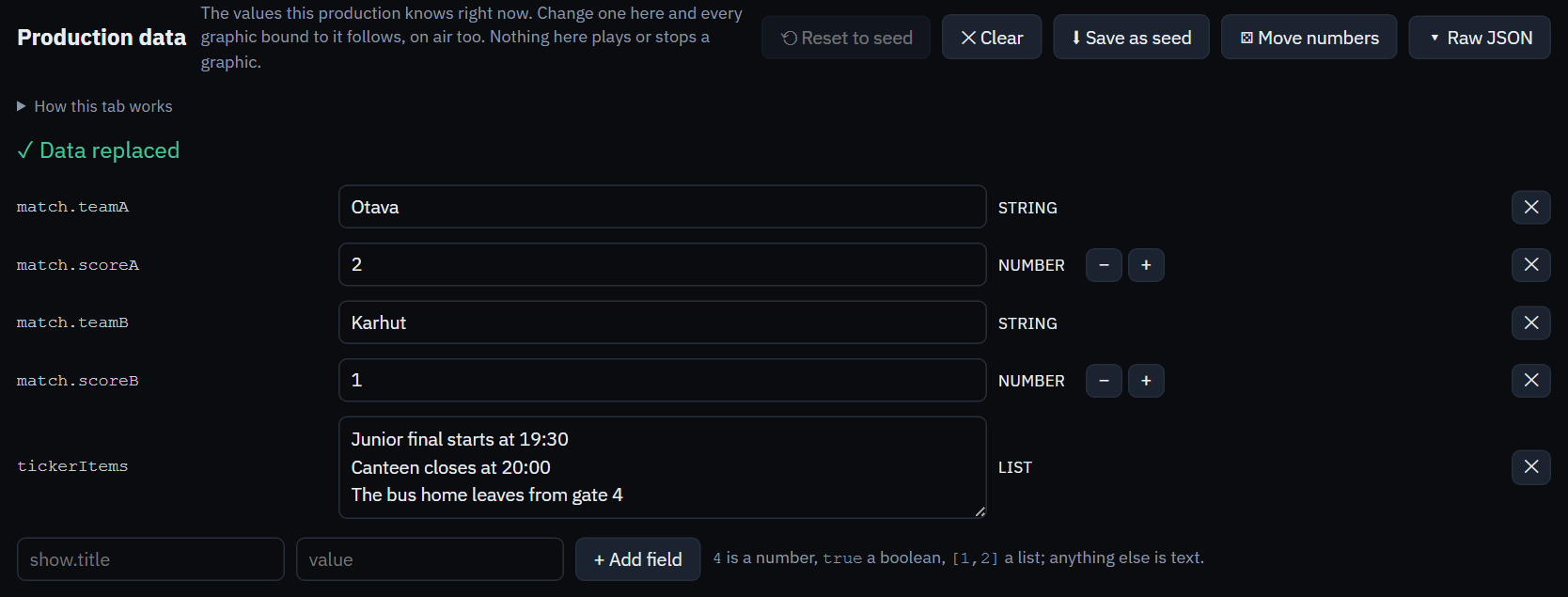
That address is a path. Dots walk down the tree, so the number 2
lives at match.scoreA and the three ticker lines live together at
tickerItems. You never have to paste JSON to get one. The row at the
bottom adds a path and a value by hand, and a path that does not exist yet is created
on the way down.
- The type is kept.
4is a number,trueis a boolean,[1, 2]is a list, and anything else is text. Number rows get − and + buttons. A list is one line per item, which is exactly what a ticker's text box takes. - This is state, not a command. Nothing on this panel plays, stops or takes a graphic. That is the whole rule of Live data, and it is what lets a feed run all night without ever airing anything.
- Keep the numbers you want to start from. ⬇ Save as seed writes the current tree onto the production itself, and ⟲ Reset to seed puts it back. Worth doing before the first rehearsal, because the live tree is otherwise this browser's own until the production is published.
The bindings: which field reads which path
A path does nothing on its own. A binding is what points one field of one graphic at one path. Scroll to Bindings and press Bind all by title.
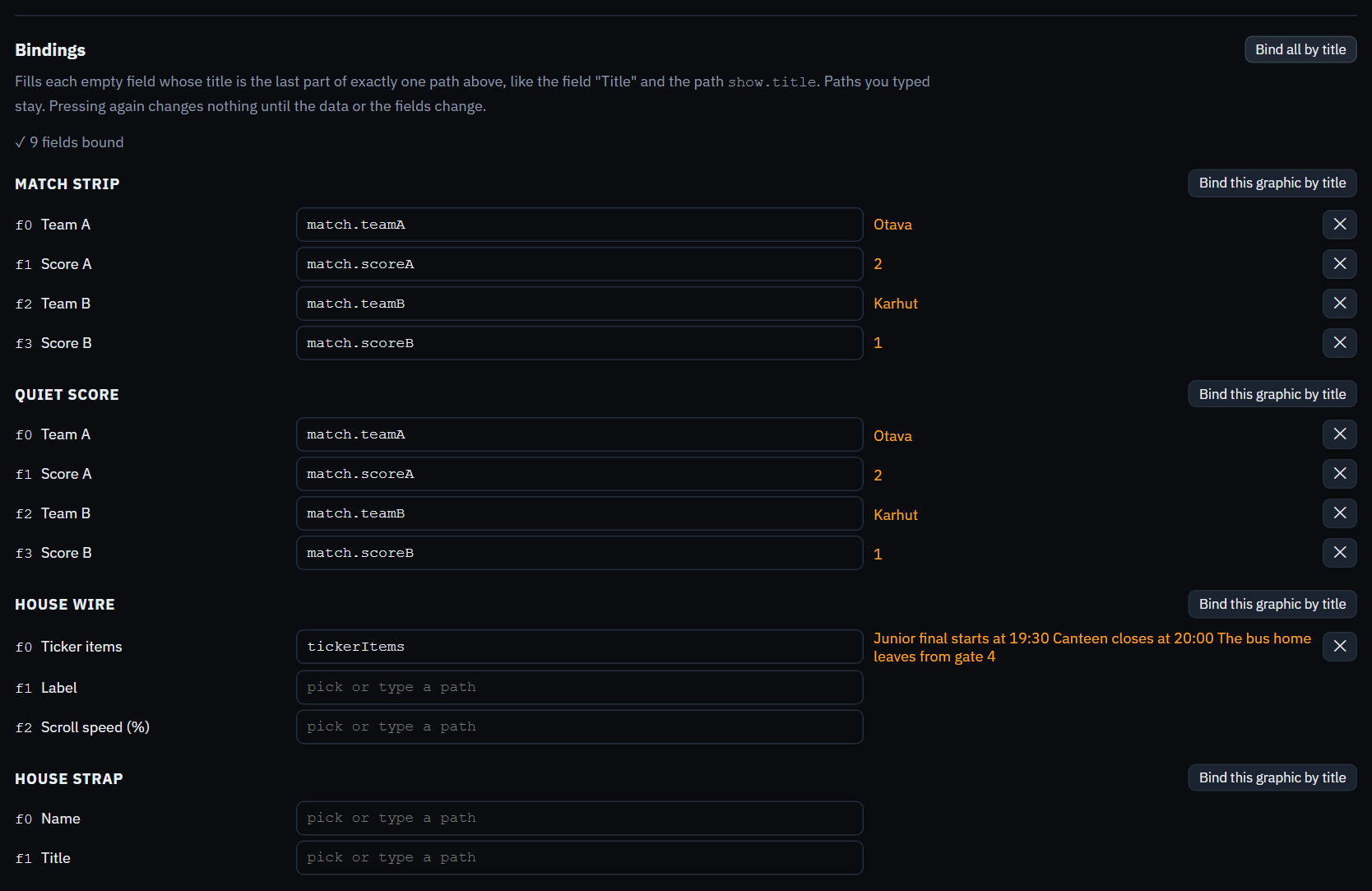
It matched by the words. "Score A" found match.scoreA because the last
part of that path is the field's own title once case, spaces and punctuation are
ignored, and "Ticker items" found tickerItems the same way. Nothing was
guessed. Where two paths match one title the row stays empty and says which two it
found, because a binding that is right half the time is worse than a box you fill in
once.
The strap's Name and Title matched nothing, and that is the correct answer rather than a gap. A guest's name is not something the whole show shares. Click any row's box to pick a path out of the list, or type one, and press the ✕ twice to unbind it again.
One value, every graphic
Press + beside match.scoreA on the Data tab. Both scoreboards now say 3,
whichever of them is on air and whichever was cued first. That is what binding is
for. The score is the show's, not any one cue's, and nobody has to remember to retype
it on the half-time card.
You do not have to leave the Playout tab to move it either. A bound field is shown there read-only, with the path it follows beside it, and the ± LIVE NUMBERS row underneath moves the shared value with one press.
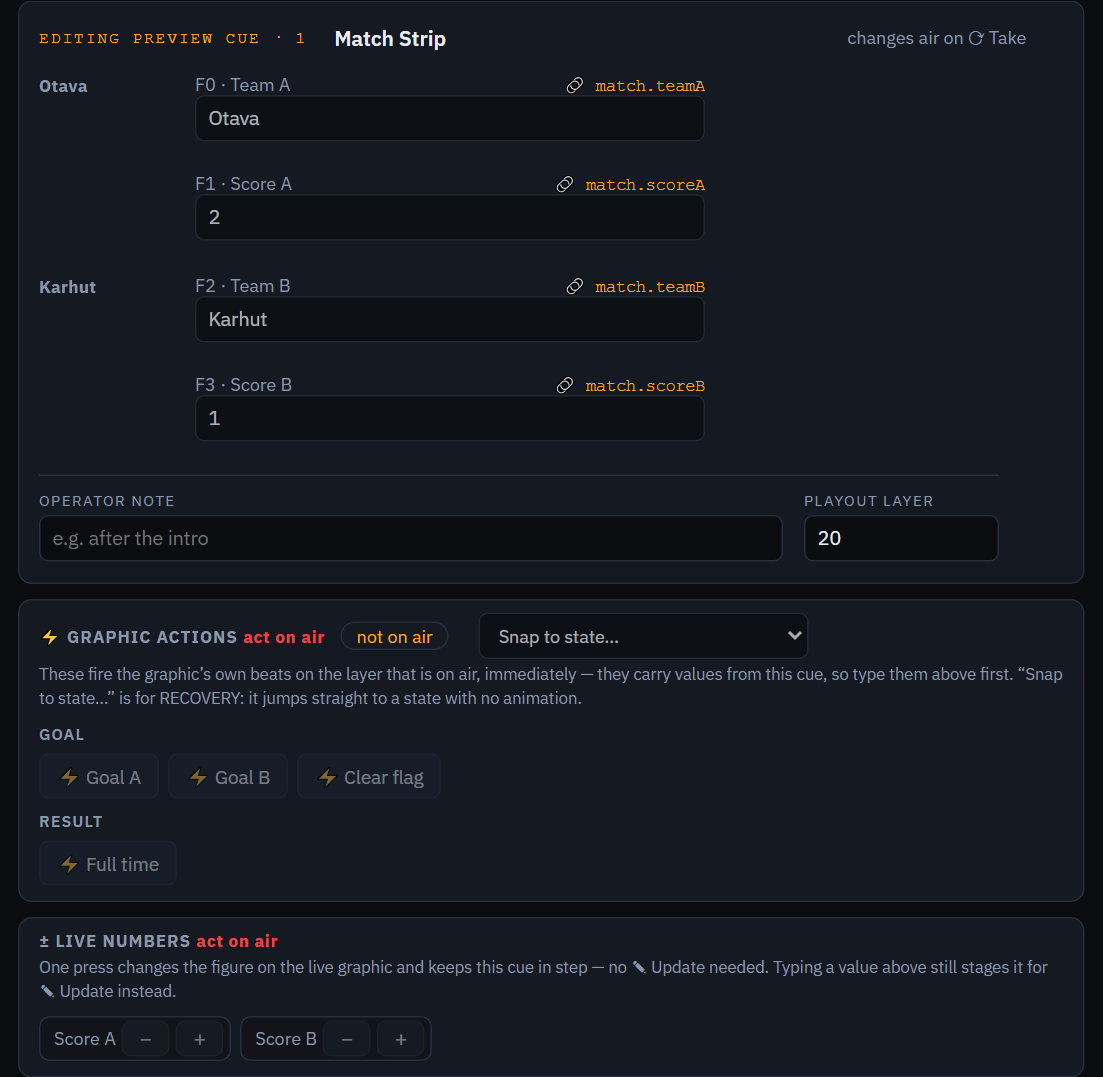
Where the tree lives depends on one thing. An unpublished production keeps it in the browser you are sitting at, which is why the seed is worth saving. A published production keeps it with the production, so every operator and every feed is looking at the same numbers, and the Data API writes into exactly this tree.
The table: rows an operator picks from
Hall Cup interviews three people, and their names belong to no particular moment in the show. That is what a table is for. It is a bank of rows, nothing is live about it, and an operator loads the row they want when they want it.
Under Tables, choose Line-up / roster and press + New table. Call it Interviews. The shape arrives with Name, Number and Position; rename Position to Title, remove Number, and type the rows.
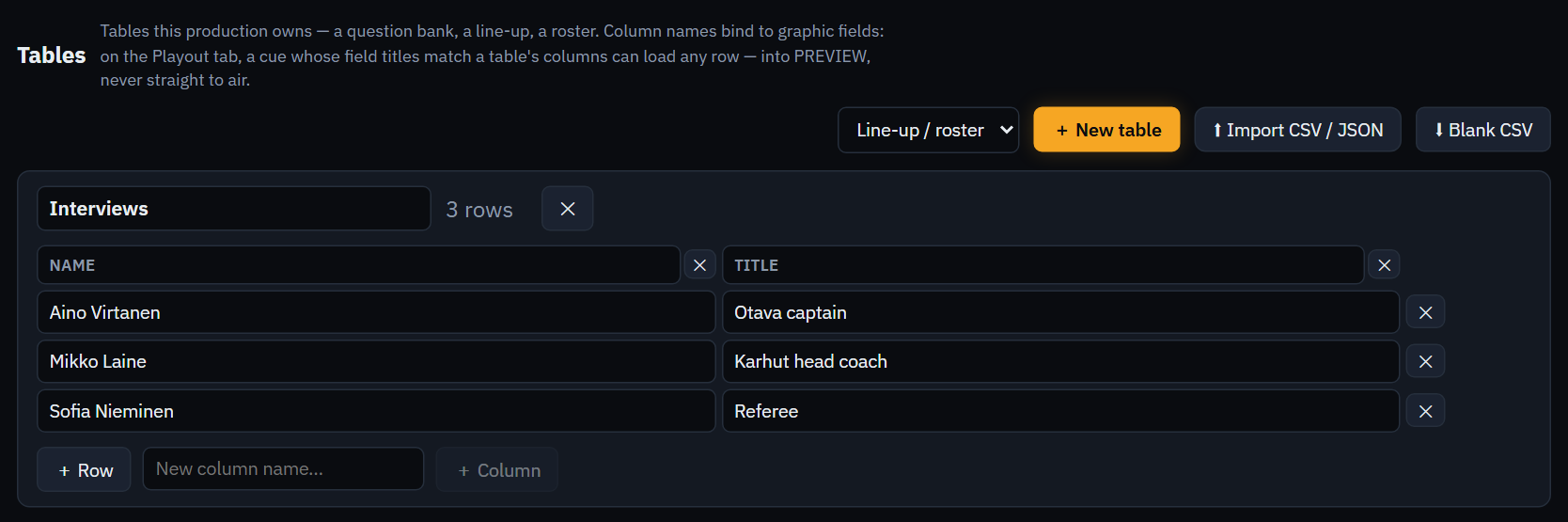
The binding is the words again. A column called Title loads into the field called Title, a column matching nothing is carried along and ignored, and a field no column names keeps whatever it had. That is why a spreadsheet already using your field names needs no mapping step: ⬆ Import CSV / JSON takes it as it is, and says afterwards which of its columns actually matched. ⬇ Blank CSV goes the other way and hands you a file with the right header row to fill in.
Now go back to the Playout tab and select the House Strap cue. It has grown a Load data row control. Picking a guest fills the cue you are editing, which is the preview, and nothing more. The name reaches air when you press ⟳ Take, like everything else.
Which of the two you want
| Production data | Tables | |
|---|---|---|
| What it holds | One value that is true right now | Many rows, none of them current |
| Who writes it | An operator, a feed, or the Data API | You, or a spreadsheet you import |
| How a graphic gets it | A binding, and then always | An operator loads a row into one cue |
| Changing it | Moves every bound graphic at once | Changes nothing until a row is loaded |
| Hall Cup uses it for | The score and the ticker lines | The guest list |
A score belongs in the tree because two graphics show it and it changes while one of them is on air. A guest's name belongs in a table because only one graphic ever shows it and the operator decides which one. When both would work, the question that settles it is whether more than one graphic needs the same value at the same time.
An audience with no Twitch and no YouTube
The first panel on the Audience tab is Chat sources, and it asks for a Twitch channel or a YouTube video. Most people running a hall, a classroom or a club night have neither, and they are not missing anything. Those two are a way of pulling an existing chat into the same inbox. The room's own page is the intake, and it is what Hall Cup uses.
Add two more graphics to the production first, both from the catalog: House Question (Audience & questions) for the messages, and House Vote (Live votes) for the poll. Then:
- Publish the production. Nothing audience-related exists before you do. An unpublished production shows ▶ Start production in the header and has no links to give out at all. Publishing is free and needs an account.
- Take the audience link. Links in the header,
then Audience link. It reads
noacg.studio/join/<name>, and the name came from the production's own name at that first publish. The Readable name row below it changes the name to something you can say out loud. Do that before you hand the link out, because a new name stops the old one working. - Give it to the room. Read it out, put it on a holding slide, or print a QR code of it. There is no app to install and nothing to sign in to, which is the point.
- Open the door. On the Audience tab, tick Accepting messages. Until you do, every phone that has the link says the production is not taking part right now. Hall Cup leaves the mode beside it on Questions; Comments is the same door asking for something shorter. Worth knowing before you pick. The heading on the viewer's page reads "Send us your question" in both, and nothing changes it yet.
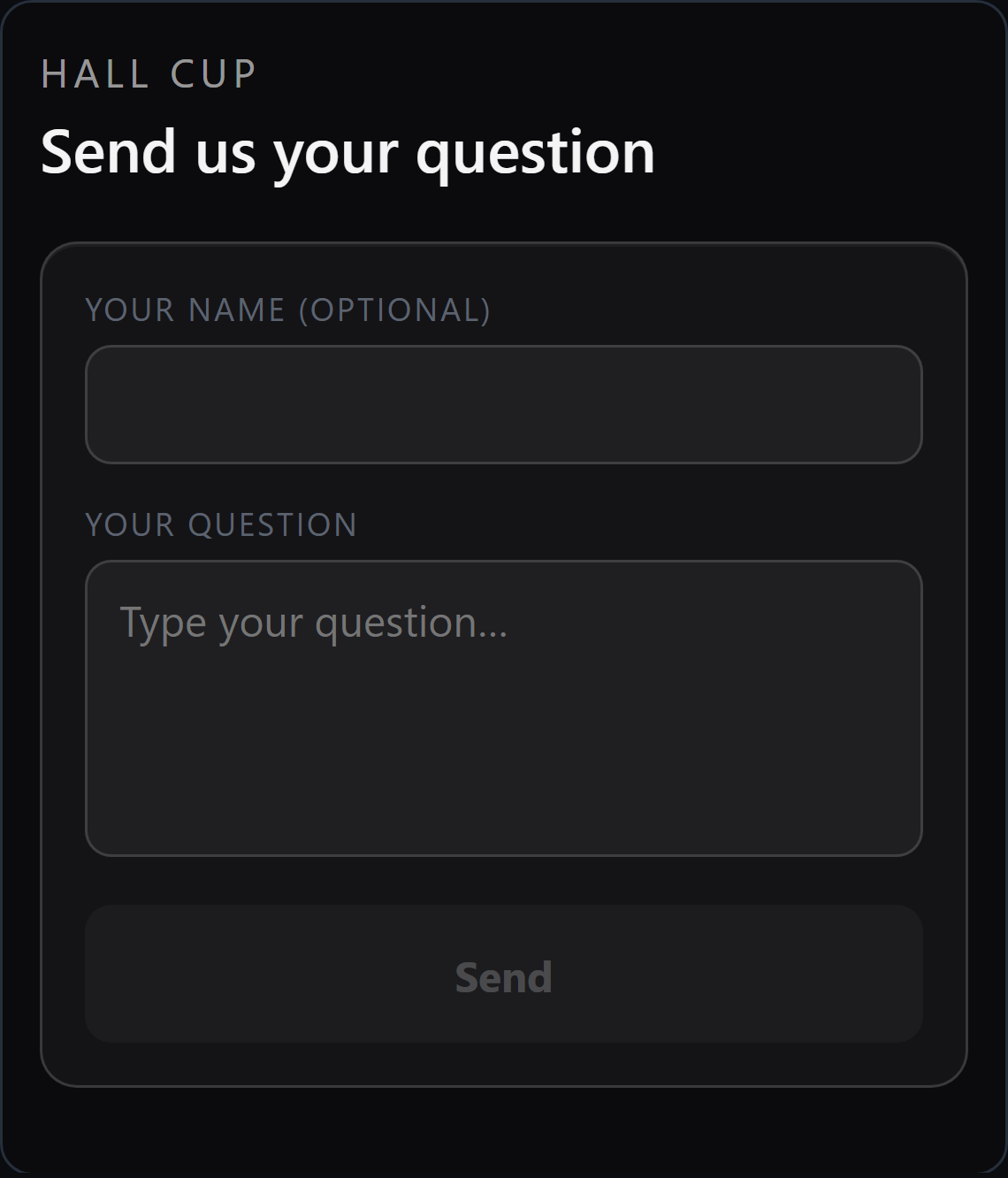
Nothing a viewer sends can air by itself. Every arrival lands in the inbox on that same tab, where an operator edits a broadcast version of it, which never touches what was actually sent, and presses → Send to rundown. That adds an ordinary cue to the House Question graphic, and the cue goes to air on Take like any other. There is no setting anywhere that skips those two steps.
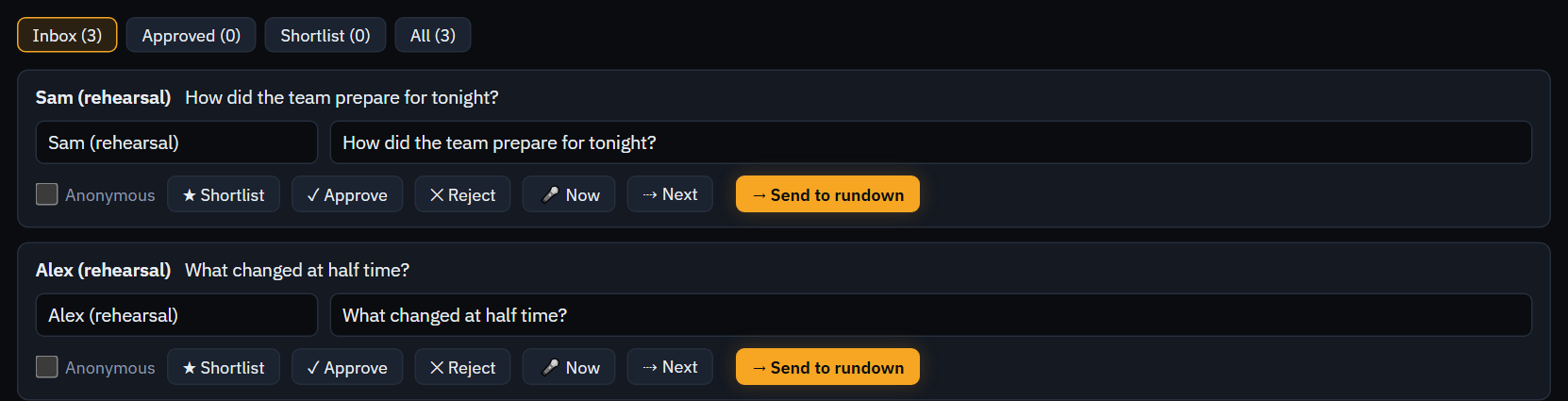
Rehearse it before the room exists. On an unpublished production the bar carries ⟳ Simulate 3 arrivals, which invents submissions so you can practise the whole moderation round with nobody watching. The rows it makes say "(rehearsal)" in their own text, so they cannot be mistaken for anybody's words. The button is absent on a published production, because there a real audience is sending.
Putting a vote to the room
Type a question under Put a question to the room, give it two to eight options on their own lines, and press Open voting. Every phone holding the link switches to the ballot at once, and a viewer can change their mind while it is open.

Stage counts to a graphic writes the question, the options and the numbers into a cue for House Vote, and Take airs it. Press it again while the round is still open and that same cue is updated rather than duplicated, so the rundown does not fill up with one row per refresh. The figures on air move when the operator shows the result, not while the room is still voting, which is what keeps a reveal a reveal. A board you drew yourself can carry a Live figures layer, and the Audience tab then offers a tick box to run the percentages live instead. A catalog board like House Vote has no such layer, so the tick box is not on screen for this show.
What was and was not run
Everything in this section was driven in the studio: the tree, the bindings, the table
and its load, the inbox, and a vote from opening it to staging the counts. The one
step taken on trust is the published noacg.studio/join/<name>
link itself, which needs an account and the hosted backend. The page a phone loads
there is the page in the picture above, drawn by the same code.
Make graphics with Claude Code, Codex or any coding agent
A coding agent can write HTML, CSS and JavaScript for a graphic. That code on its own has no operator controls, no events an operator can press, and no promise about how it behaves in a playout system. The NoaCG CLI is what closes that gap. It hands the agent the contract a graphic has to meet, runs the studio's own validator over what the agent wrote, and saves the result into your library once it passes.
What lands there is an ordinary NoaCG graphic. It goes into a production, answers the operator events its own behaviour defines, and takes live data from a sheet or an API.
Paste this to your agent and start building
One prompt does the setup. Your agent works out which install it needs, runs it, checks that it worked, and then asks you what to make. It runs a couple of install commands that you have to approve.
Set up NoaCG Studio so you can build broadcast graphics for me, then ask me what to make.

1. Install whichever of these matches you. Claude Code:
     claude plugin marketplace add NoaCG/NoaCG-Studio
     claude plugin install noacg@noacg-studio
   Codex:
     codex plugin marketplace add NoaCG/NoaCG-Studio
     codex plugin add noacg@noacg-studio
   Any other agent that speaks MCP: register a stdio server, command "npx", arguments
   "-y @noacg/cli mcp". I will approve these commands as you run them.

2. Do not wait for the install. A plugin only loads in your next session, so use
   "npx -y @noacg/cli <command>" for everything today, starting with
   "npx -y @noacg/cli docs contract" to read what a NoaCG graphic must expose.

3. Verify: "npx -y @noacg/cli doctor" prints the deployment, the browser it will drive and
   the bridge version it found. If it does not, tell me what failed and stop.

4. Then tell me in one or two lines that NoaCG is ready, and ask me to describe the graphic
   I want.

The loop after that: scaffold or author, "npx -y @noacg/cli validate <dir> --screenshots
./shots", fix what it reports, then "npx -y @noacg/cli save <dir>". Saving needs
"npx -y @noacg/cli login" once, which opens a browser for me to approve.
It needs Node.js 20 or newer and a system Chrome or Edge, which the validator drives in headless mode. No account is needed until you save a graphic into a library. The install commands the prompt runs are written out one by one under Reference, for anyone who would rather run them by hand.
Then describe the graphic you want
"Make me a clean scoreboard for a floorball stream: home, away, period, clock." In
Claude Code, /noacg:graphic starts the same thing.
The part that makes that work is the noacg-graphic skill. It teaches the
agent how a NoaCG graphic is put together, which tools to reach for, how to validate
what it wrote, and how to save the result into your library. It says nothing about
how the graphic should look, which stays the agent's job. The plugin carries it from
your next session on, and noacg docs prints the same reference texts
before then.
Working from that, the agent:
- Scaffolds a starting package when the graphic needs a type's fields and operator events. This step is optional: it can also author from scratch against the contract.
- Authors the graphic itself, the way it normally writes code.
- Validates it against the studio's own gate and a live playout bench, with off-air, on-air and stress screenshots, so it can see what it made.
- Iterates on the findings, which read the way a compiler reports errors, until they are clean.
- Saves it into your NoaCG library and prints the link.
Saving is the one step that needs you. Run noacg login once per machine
and approve it in the browser. The key it stores can only create graphics in your
library, and Settings, under Account, Agent access, revokes it.
npx @noacg/cli login
save refuses a graphic that does not pass validation. What it saves is
editable in the studio like any other graphic, and exports to every target NoaCG
supports.
Reference
The install commands, one by one. These are what the prompt above runs. There are three ways to install, and they are all the same package.
Claude Code. The plugin carries the noacg-graphic skill
and a /noacg:graphic command, with nothing to install first. It runs
nothing until a graphic is being made. The skill drives the CLI from the terminal, so a
session about anything else pays nothing for it.
claude plugin marketplace add NoaCG/NoaCG-Studioclaude plugin install noacg@noacg-studio
Want the noacg tool present in every session, with a browser kept warm
between calls? A second, optional plugin adds the always-on MCP server. It costs a
process and some context in every session, which is why it is separate.
claude plugin install noacg-mcp@noacg-studioCodex. The same plugin, from the same repository.
codex plugin marketplace add NoaCG/NoaCG-Studiocodex plugin add noacg@noacg-studio
Any other agent that speaks MCP. Register the server over stdio:
command npx, arguments -y @noacg/cli mcp. It brings the
tools, and the contract text comes with them as the server's own resources.
npx -y @noacg/cli mcp
A plugin loads at the start of a session, so the one it was installed from does not
have it. That is why the prompt above uses npx for the first graphic.
The package. All three routes above are one npm package,
@noacg/cli,
installing one command, noacg. You can also run it yourself.
npm i -g @noacg/cli
Every command also works as npx @noacg/cli <command> with nothing
installed. The loop by hand is three of them:
npx @noacg/cli scaffold --type scoreboard --design neutral --out my-scorebugnpx @noacg/cli validate my-scorebug --screenshots shotsnpx @noacg/cli save my-scorebug
scaffold creates the directory relative to where you run the command, and
it has to be new or empty. noacg types lists the graphic types the
deployment knows, with their fields and operator events, which is where a
--type value comes from.
The MCP server without the skill. For the tools in Claude Code but not the plugin:
claude mcp add noacg -- npx -y @noacg/cli mcp
That registers it for the directory you run it in; add --scope user to
have it everywhere. The server exposes one tool, noacg, whose
command is the CLI verb (types, scaffold, validate, inspect, screenshot,
docs, save), so an agent can read the contract through docs before it
has a deployment or a key. A server registered this way runs in every session of that
scope; the noacg plugin runs no server at all, and its skill drives the
CLI from the terminal.
Which files to edit. A package holds sources and generated files.
Edit <name>.html, css/template.css,
js/template.js, and the images/ and fonts/
folders. Leave <name>.ograf.json, graphic.mjs,
FIELDS.md, README.md and controlpanel.html
alone. validate rewrites them from the sources, so an edit made there is
lost.
Which deployment it talks to. https://noacg.studio by
default. NOACG_URL points it at a local dev server or a self-hosted one
instead. NOACG_BROWSER names a Chromium executable when the system Chrome
or Edge is not the one to use, and NOACG_AGENT_KEY supplies a key in CI,
where nothing can open a consent page in a browser.
When something fails for a reason the findings do not explain,
doctor prints what the tool resolved: which browser it will drive, which
deployment NOACG_URL points at, the bridge version it found there, and
whether a key is held.
npx @noacg/cli doctorWhat the package is. The folder is at the same time a valid SPX package and an EBU OGraf v1 graphic. Zip it and it also imports through the studio's Import door, or plays in any OGraf renderer. Those two are what the folder satisfies with no build step; the graphic itself is plain HTML, CSS and JavaScript, so the same sources also export to CasparCG, an OBS or vMix overlay, H2R and LiveOS. The full reference is AGENT_CLI.md.